Coming soon
Stealth Job Search

Can My Employer See My Browsing History? What They Can and Can't See

Can my employer see my browsing history? What work laptops, work Wi-Fi, MDM phones and incognito mode reveal, and how to keep a job search off their systems.

Mira Resume Editorial Team · Career content team Published Updated 10 min read
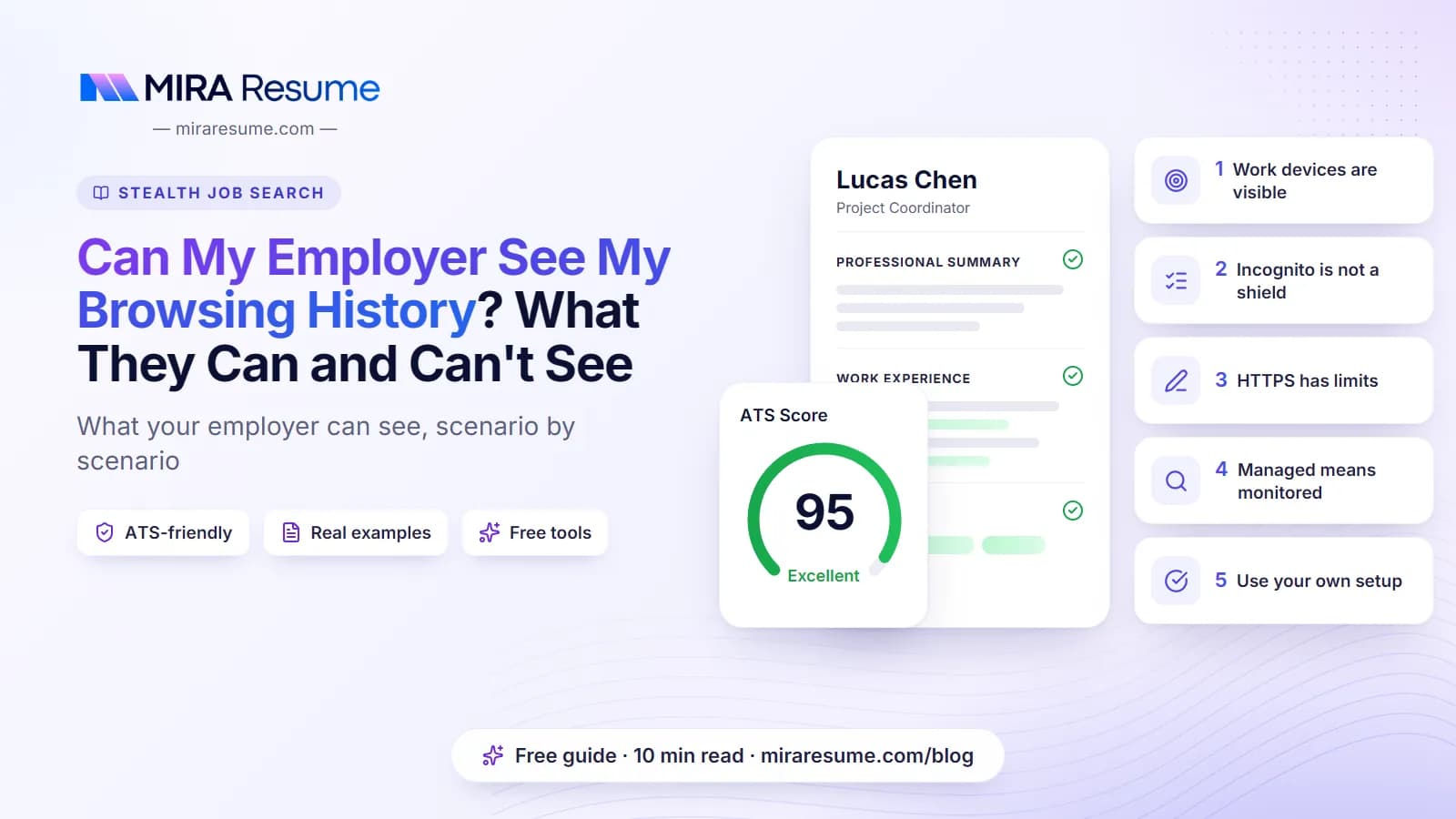
Can My Employer See My Browsing History? What They Can and Can't See: cover image for the Mira Resume guide, with an example resume and the 5 main points

Can my employer see my browsing history? Often, yes, but it depends almost entirely on two things: whose device you are using and whose network it is connected to. On company equipment or the office Wi-Fi, your employer may be able to see a lot. On your own phone using your own mobile data, they typically see nothing.

This guide explains what an employer can typically see in the most common situations, why private browsing does not help on a work laptop, what the padlock in your browser does and does not hide, and how to keep a job search where it belongs. It is part of our stealth job search guide.

We have kept the language careful on purpose. What any one employer can see depends on the tools they use, how those tools are set up and their policies. We describe what is typical, not what is certain.

This is general information, not legal or technical security advice. Laws, employer policies and contracts vary by country, state and company.
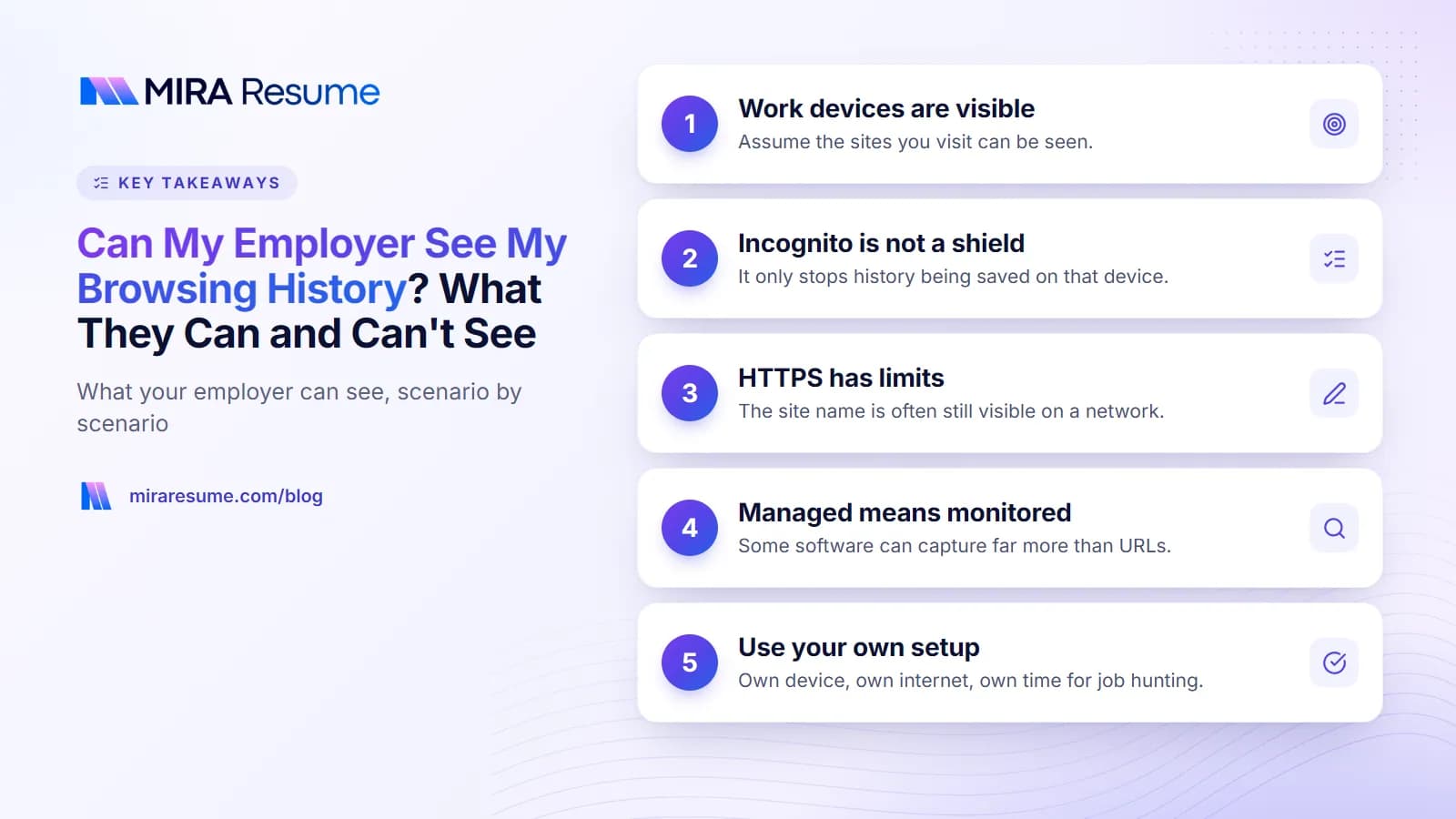
Key takeaways: 1. Work devices are visible; 2. Incognito is not a shield; 3. HTTPS has limits; 4. Managed means monitored; 5. Use your own setup
Key takeaways from this guide.

The short answer

Think of it as two questions: who owns the device, and who runs the network.

  • If your employer owns or manages the device, assume they can see what you do on it, including sites you visit, and possibly much more.
  • If your employer runs the network, assume they can see at least which websites devices on it connect to, even your personal phone.
  • If you own the device and it is on your own home internet or mobile data, your employer typically has no visibility, unless you have installed work software or a work profile on it.

Clearing your history, using incognito mode or closing the tab does not change the first two points. That is why the practical rule for a job search is short: own device, own network, own time.

What your employer can typically see, scenario by scenario

The table below covers the situations people ask about most. Read "typically" and "may" literally: the real answer depends on the tools and policies at your workplace.

ScenarioWhat an employer may typically seeNotes
Work laptop on any network (office, home or café)Websites visited, apps used, files, and on some setups screenshots or keystrokesMonitoring and security software on the laptop can report back from anywhere, not just the office
Personal device on work Wi-FiWhich websites or domains the device connects to, when, and how much data is usedPage contents on HTTPS sites are usually encrypted, but the domain name usually is not hidden from the network
Personal device on home Wi-Fi or mobile dataTypically nothingExceptions can include work apps, a work profile or an employer management profile installed on the device
Work phone or MDM-managed phoneDepends on the management setup; may include apps, device activity, and traffic routed through company systemsFully managed company phones generally give the employer more visibility than a personal phone with a work profile
VPN on a work deviceA company VPN routes traffic through company systems, which can increase what is visibleA personal VPN does not hide activity from software on the device itself, and may break company policy

The pattern is consistent: the closer a device or network is to your employer, the more they may see. The fix is not a clever setting; it is distance.

Can my employer see my incognito history?

On a work device or work network, assume yes. Incognito or private mode is designed to stop the browser from saving your history, cookies and form entries on that device after you close the window. It is a privacy feature for people who share a computer at home. It was never meant to hide activity from the network or from software running on the computer.

Major browsers say this themselves. The private-window screen in browsers such as Chrome and Firefox notes that your activity may still be visible to others, such as your employer or your internet provider.

Why private mode does not help on a managed device

  • The network still sees the connection. Your laptop still asks the network to reach a site, whether the window is private or not.
  • Security software runs outside the browser. Monitoring and security tools installed on the laptop can see activity regardless of browser mode.
  • Browsers can be managed by policy. On company devices, IT can control browser settings and, in some setups, can switch private mode off altogether.
  • Proxies and filters log traffic. Many organisations route web traffic through a filter or proxy that keeps its own records.

The same logic applies to deleting your history. Clearing it removes the local list in the browser. It does not reach records kept by the network, a proxy or monitoring software.

What HTTPS hides, and what it does not

The padlock in your address bar means the connection to that site is encrypted. That protects a lot, but not everything.

Usually protected by HTTPS on a networkUsually still visible to the network
The specific pages you open on a siteThe website's domain name, for example a job board's address
What you type, such as searches and form entriesThe time and length of your visits
Passwords and account detailsRoughly how much data was sent and received
The contents of messages and uploadsThe device that made the connection

So on office Wi-Fi, even with a personal phone, the network may record that your device visited a job site on Tuesday at lunchtime, without seeing which jobs you looked at. On a company-managed device, the picture can be different again. Some organisations install their own security certificates on managed devices, which can let their security tools inspect encrypted traffic. You would not normally notice this from the padlock alone.

Illustration of the Mira Resume job tracker: Track every application from wishlist to offer, with notes and next steps in one place.
Illustration: Job tracker: Track every application from wishlist to offer, with notes and next steps in one place.Try it

Work laptop monitoring: what the software can do

Employee monitoring software ranges from basic security tools to detailed productivity tracking. What is installed on your laptop depends on your employer, your industry and local rules. Depending on the product and settings, tools on a managed laptop may be able to:

  • Record which websites you visit and which apps you open, and for how long.
  • Take periodic screenshots or record the screen.
  • Log keystrokes, in some setups.
  • Track files that are created, downloaded, copied or uploaded, including a resume saved to Downloads.
  • Scan email and chat on company accounts.
  • Flag activity that matches certain rules, such as uploading documents to outside sites.

Not every employer uses all of these, and many use them mainly for security rather than watching individuals. But you usually cannot tell from the outside what is running or how it is set up. The safe assumption on a managed device is that anything on the screen can be recorded.

Where to find out what applies to you

Your employer's IT or acceptable use policy, the employee handbook, any monitoring notice you signed, and your employment contract are the places to look. Some employers are very open about what they monitor. If the policy is unclear, it is reasonable to ask HR or IT in general terms, without mentioning a job search.

Can my employer see what websites I visit on my phone?

It depends on whose phone it is and which network it uses.

Personal phone on mobile data

Your traffic goes through your mobile carrier, not your employer. Typically, your employer sees nothing. This is the simplest, safest option for a job search during a lunch break.

Personal phone on work Wi-Fi

The network may see which domains your phone connects to, as described above. If you joined the Wi-Fi by installing a company profile or certificate, the employer may have more visibility. Switch Wi-Fi off and use mobile data before opening job sites at work.

Personal phone with a work profile or work apps

Many employers use a work profile or managed apps on personal phones. These are generally designed to separate work data from personal data, and the employer usually manages only the work side. How much else is visible depends on how the phone was enrolled. Your phone's settings normally show whether a management profile or work profile is installed. If you are not sure, assume the more visible case.

Work phone

A phone your employer owns and manages should be treated like a work laptop. Keep recruiter calls, job apps and interview emails off it entirely.

Policies, laws and what we cannot tell you

Whether a particular kind of monitoring is allowed depends on where you work, what your contract says and what your employer has told you. In many places, employers are generally permitted to monitor their own devices and networks, often with some form of notice. Some countries and, in the US, some states have rules about notice, consent or data protection that limit what employers can collect and how they use it. India and the European Union, for example, both have data protection laws that apply to employers in some situations.

We cannot tell you what applies to your job. If you think monitoring at your workplace is unlawful or goes beyond what you were told, a local employment lawyer, labour office or union is the right place to ask. For a job search, though, you rarely need to get that far: keep it off employer systems and the question does not arise.

Job search on a work computer: practical rules

These rules are simple, and they work regardless of what software your employer uses.

  1. Do not job search on a work computer at all. Not job sites, not your resume, not recruiter emails, not interview calls.
  2. Use your own device on your own network. A personal laptop at home, or your personal phone on mobile data.
  3. Use your own time. Evenings, weekends and genuine breaks. Searching on paid time is the most common reason people get caught and can breach policy.
  4. Keep files personal. Never save your resume on a work laptop, work cloud drive or the office printer queue.
  5. Keep accounts separate. Do not sign into personal email or a personal browser profile on a work device.
  6. Do not try to get around controls. Installing a personal VPN or other tools on a work laptop to hide activity can break policy and draws more attention, not less.
  7. Schedule interviews outside the office network. Join video calls from home or a quiet place on your own connection.

For the full set of leak points, including LinkedIn, references and recruiters, read how to hide your job search from your employer. If LinkedIn is your main worry, see how to hide Open to Work from your current employer. For planning interviews around your hours, read how to interview while employed.

What Mira Resume's Stealth Mode does, and what it does not

We built Stealth Mode for a narrow problem, and we want to be honest about where it stops.

What it does

It shows real job listings inside a full-screen page that looks like an ordinary spreadsheet, with column letters, row numbers, a formula bar and sheet tabs. You search by typing into the formula bar, for example =JOBS("data analyst", "Bengaluru"), or plain text like "data analyst in Bengaluru". The browser tab shows a neutral file name instead of a job site, and pressing Esc twice jumps to a decoy budget sheet. Listings come from the same pool as Mira Scout: public company career boards, remote-job feeds and Adzuna. It works without an account.

What it does not do

Stealth Mode disguises your screen. It does not hide your traffic. It does not hide your browsing from your employer's network, proxy or monitoring software. On a work laptop or work Wi-Fi, your employer may still see that you visited the site, and screen-capture tools on a managed device would capture the spreadsheet with its job listings. It is not a way to search on company equipment.

ThreatDoes Stealth Mode help?
Someone glancing at your personal screen at home or on a commuteYes, that is what it is for
A browser tab title giving you away on a shared screenYes, the tab shows a neutral file name
Office Wi-Fi logging the sites you visitNo
Monitoring software on a work laptop or managed phoneNo

Use it on your own device and your own network. To keep track of applications, pair it with a simple job search spreadsheet template, and for a step-by-step routine see how to look for a job while employed. If your situation is especially sensitive, our guide to a confidential job search goes further.

Frequently asked questions

Can my employer see my incognito history?

On a work device or the office network, assume yes. Incognito mode only stops the browser saving history on that computer. The network can still see which sites you connect to, and monitoring or security software on a managed laptop works outside the browser. Browsers such as Chrome and Firefox note this on their private-window screen.

Can my employer see what I do on my personal phone on work Wi-Fi?

Possibly in part. The network may see which websites or domains your phone connects to and when, even though HTTPS usually hides the page contents. If you installed a company profile or certificate to join the Wi-Fi, they may see more. Switch to mobile data before opening job sites at work.

Does deleting my browser history hide it from my employer?

No. Clearing history removes the list stored in your browser on that device. It does not affect records kept by the company network, a web filter or proxy, or monitoring software on a managed laptop. The only reliable approach is not to use work devices or networks for private activity such as a job search.

Can my employer see my browsing at home on my work laptop?

Often, yes. Monitoring and security software on a company laptop can usually report activity from any network, including your home Wi-Fi. If the laptop also connects through a company VPN, traffic may pass through company systems as well. Being at home does not make a work laptop private.

Is it legal for my employer to monitor my browsing?

It depends on where you work, your contract and what your employer has told you. In many places employers may monitor their own devices and networks, often with notice, while some countries and US states add rules on notice, consent or data protection. This is not legal advice; check your policies or ask a local professional.

Does Mira Resume's Stealth Mode hide my browsing from my employer?

No. Stealth Mode changes what is visible on your screen, showing jobs inside a spreadsheet-style page with a neutral tab name and a decoy sheet. It does not hide your traffic from an employer's network, proxy or monitoring software. On a work laptop or work Wi-Fi they may still see the visit, so use your own device and network.

Found this useful? Share it

Send it to a friend who is job hunting, or save it for later.

Read this guide with AI

Get a plain-language summary and help applying it to your own resume. Pick an assistant; it opens with this article and a ready prompt.

Back to Stealth Job Search hub

All articles