Coming soon
Stealth Job Search

How to Hide Open to Work From Your Current Employer

Hide Open to Work from current employer view: Recruiters only vs All members, what LinkedIn can't guarantee, notification settings and safer alternatives.

Mira Resume Editorial Team · Career content team Published Updated 9 min read
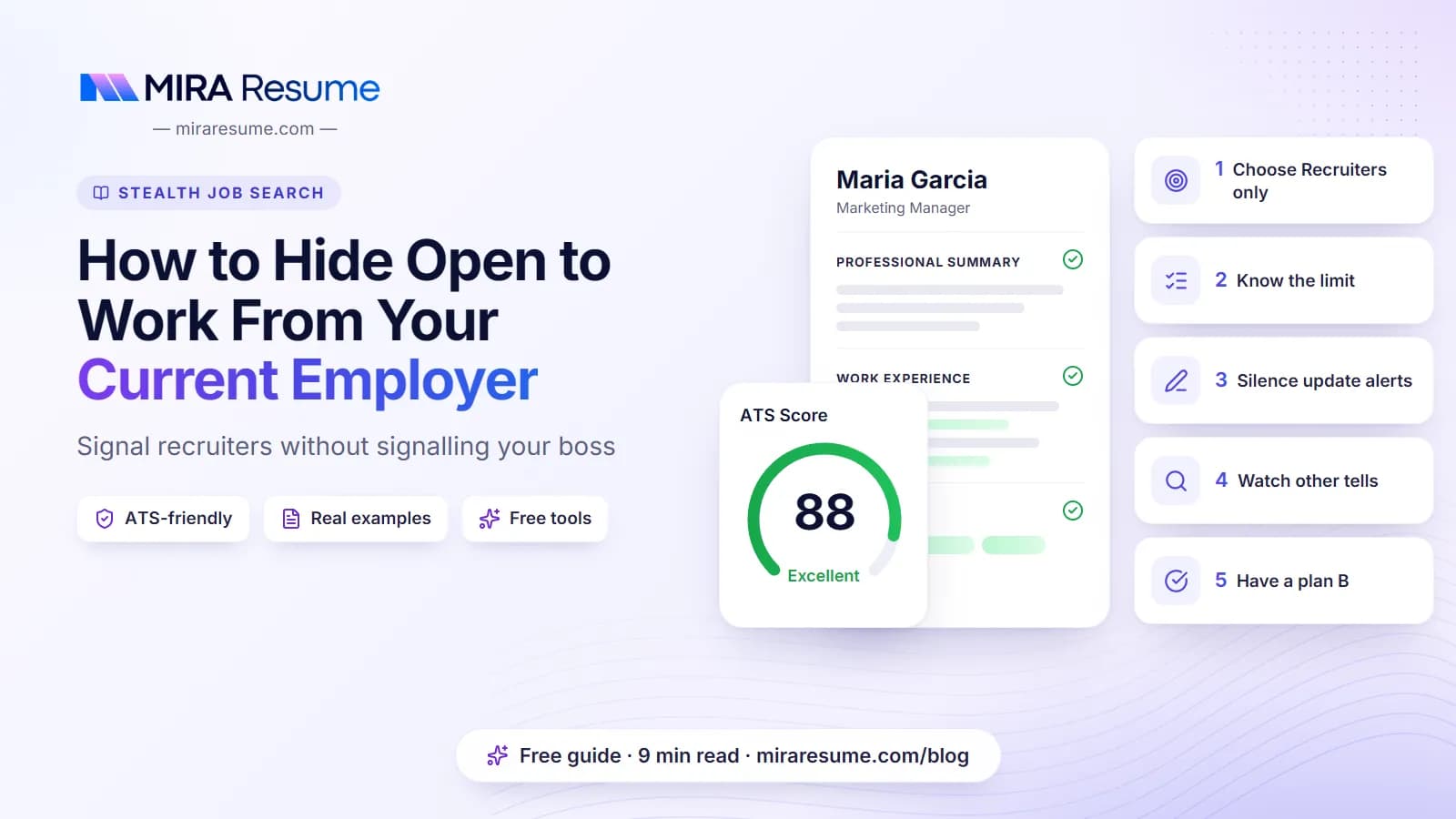
How to Hide Open to Work From Your Current Employer: cover image for the Mira Resume guide, with an example resume and the 5 main points

LinkedIn's Open to Work feature is one of the easiest ways to get noticed by recruiters. It is also one of the easiest ways to get noticed by your own manager. For most employed people the goal is simple: hide Open to Work from current employer recruiters and colleagues while still being visible to everyone else who is hiring.

You can get most of the way there with one setting, called Recruiters only. But it is not a guarantee, and LinkedIn says so itself. This guide explains the two visibility options, what each one shows, where the gaps are, how to set it up, and what other LinkedIn habits quietly give a job search away.

It is part of our wider stealth job search guide. If you also want to keep your search away from work devices and colleagues, read how to hide your job search from your employer next.

LinkedIn changes its menus and wording from time to time. The steps below describe the general path; the exact labels on your screen may differ.
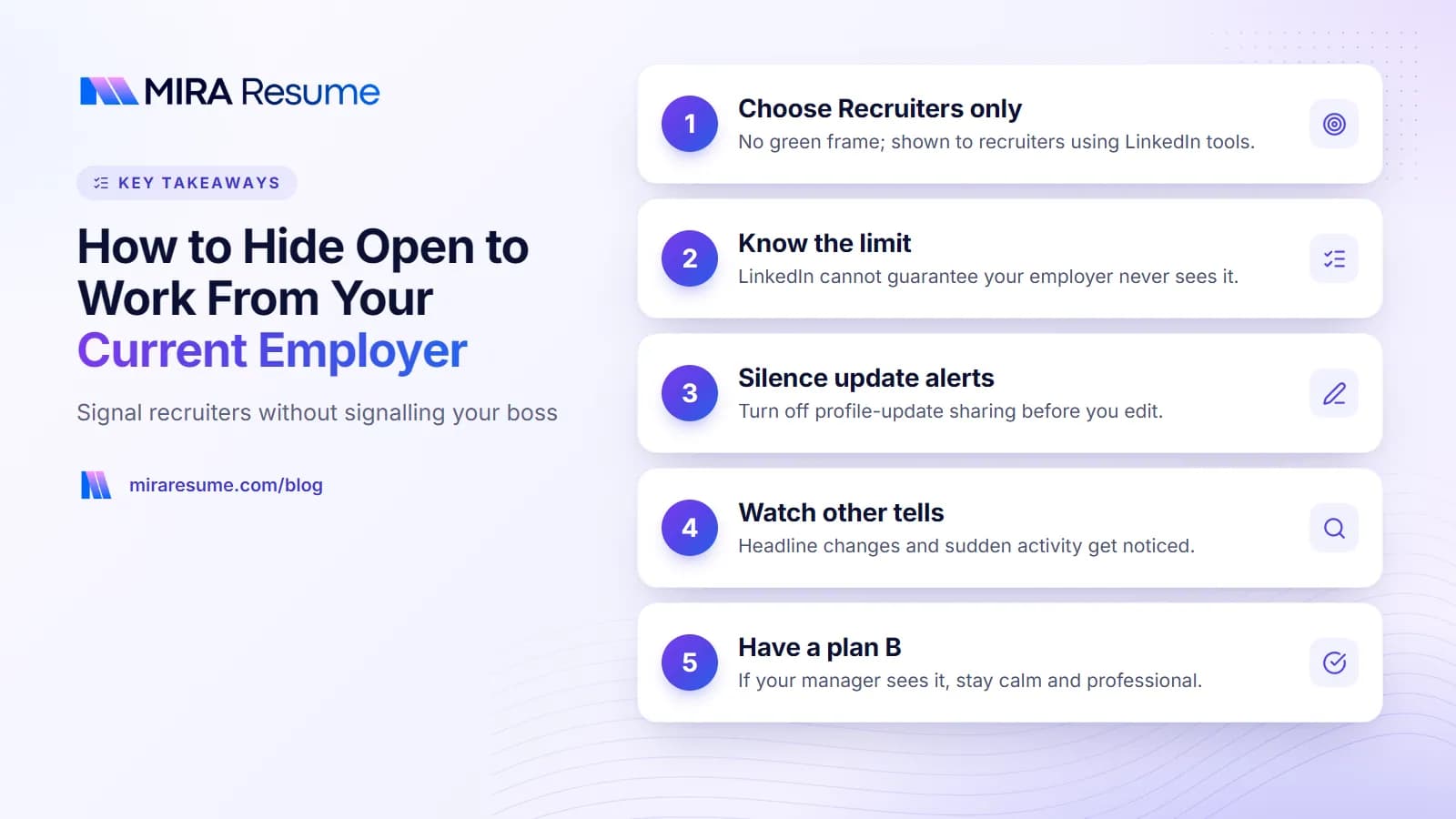
Key takeaways: 1. Choose Recruiters only; 2. Know the limit; 3. Silence update alerts; 4. Watch other tells; 5. Have a plan B
Key takeaways from this guide.

The two Open to Work visibility options

When you turn on Open to Work, LinkedIn asks who should be able to see it. There are two choices, and they behave very differently.

OptionWho can see itPhoto frameRisk with your current employer
All LinkedIn membersAnyone on LinkedIn who views your profile, including colleagues, your manager and HRYes, a green #OpenToWork frame around your photoHigh. Treat it as a public announcement
Recruiters onlyRecruiters using LinkedIn's recruiting toolsNo frameLower. LinkedIn takes steps to hide it from recruiters at your current company, but cannot guarantee it

All LinkedIn members

This option is designed for people who are happy to be public, for example after a layoff or when a contract is ending. The Open to Work green frame shows up next to your name across LinkedIn: in search results, in comments and in your posts. Anyone who works with you can see it. If you are employed and want privacy, do not choose this option.

Recruiters only

The LinkedIn Open to Work Recruiters only setting is the one most employed people should use. Your profile looks the same to ordinary visitors, with no frame and no banner. The signal and your job preferences are shown to recruiters who search for candidates using LinkedIn's paid recruiting products. That is where the value is: those recruiters are actively looking for people like you.

Can my employer see Open to Work?

With All LinkedIn members, yes. Anyone at your company who looks at your profile can see the frame.

With Recruiters only, the answer is "probably not, but possibly." LinkedIn's own help page on Open to Work explains that it takes steps to avoid showing your career interests to recruiters at your current company, but that it cannot guarantee complete privacy. It is worth reading that page yourself, because the wording is LinkedIn's and may be updated.

Where the gaps can be

  • Affiliated companies. A parent company, subsidiary or sister brand may use a different LinkedIn Page and a separate recruiting account. The filter may not treat them as your employer.
  • Outside recruiters. Your company may hire an external agency to fill roles. A recruiter there can see your signal, and may know people at your company. A colleague could even be using that agency for their own search.
  • People who know where to look. Someone who handles hiring at your company may hear about your profile second-hand from a recruiter they work with.
  • Other clues on your profile. Even if the Open to Work signal is hidden, a sudden headline change or a flurry of edits can say the same thing.

So the honest summary is: Recruiters only reduces the risk a lot, but it does not remove it. Decide whether the benefit of being found by recruiters is worth a small chance of being seen. For many people it is. For some, such as those in small industries or senior roles, a quieter approach is better. Our guide to a confidential job search covers those situations.

How to set Open to Work to Recruiters only

The general path is the same on desktop and in the mobile app. LinkedIn changes its menus from time to time, so look for the closest matching labels on your screen.

  1. Turn off profile-update sharing first. See the next section. Do this before you change anything else.
  2. Go to your profile. Click or tap your photo, then open your own profile page.
  3. Open the Open to work section. It usually sits near the top of your profile, often under an "Open to" button. Choose the option for finding a new job.
  4. Add your preferences. Job titles, locations, on-site, hybrid or remote, start date and job types. Use the titles recruiters actually search for, not internal job names.
  5. Choose Recruiters only in the visibility setting. Read the short note LinkedIn shows beside it.
  6. Save, then check your profile. Make sure there is no green frame on your photo. If LinkedIn offers to create a post announcing that you are open to work, skip it.

If you already chose All LinkedIn members

Open the same section and edit the visibility to Recruiters only, or delete the Open to Work preferences entirely. Then check your profile picture again from another device to confirm the frame has gone.

Choosing job titles

Recruiters search by title and skills. Add two or three titles that match the roles you want, and make sure your profile uses similar words. Our guide to resume keywords applies to LinkedIn too.

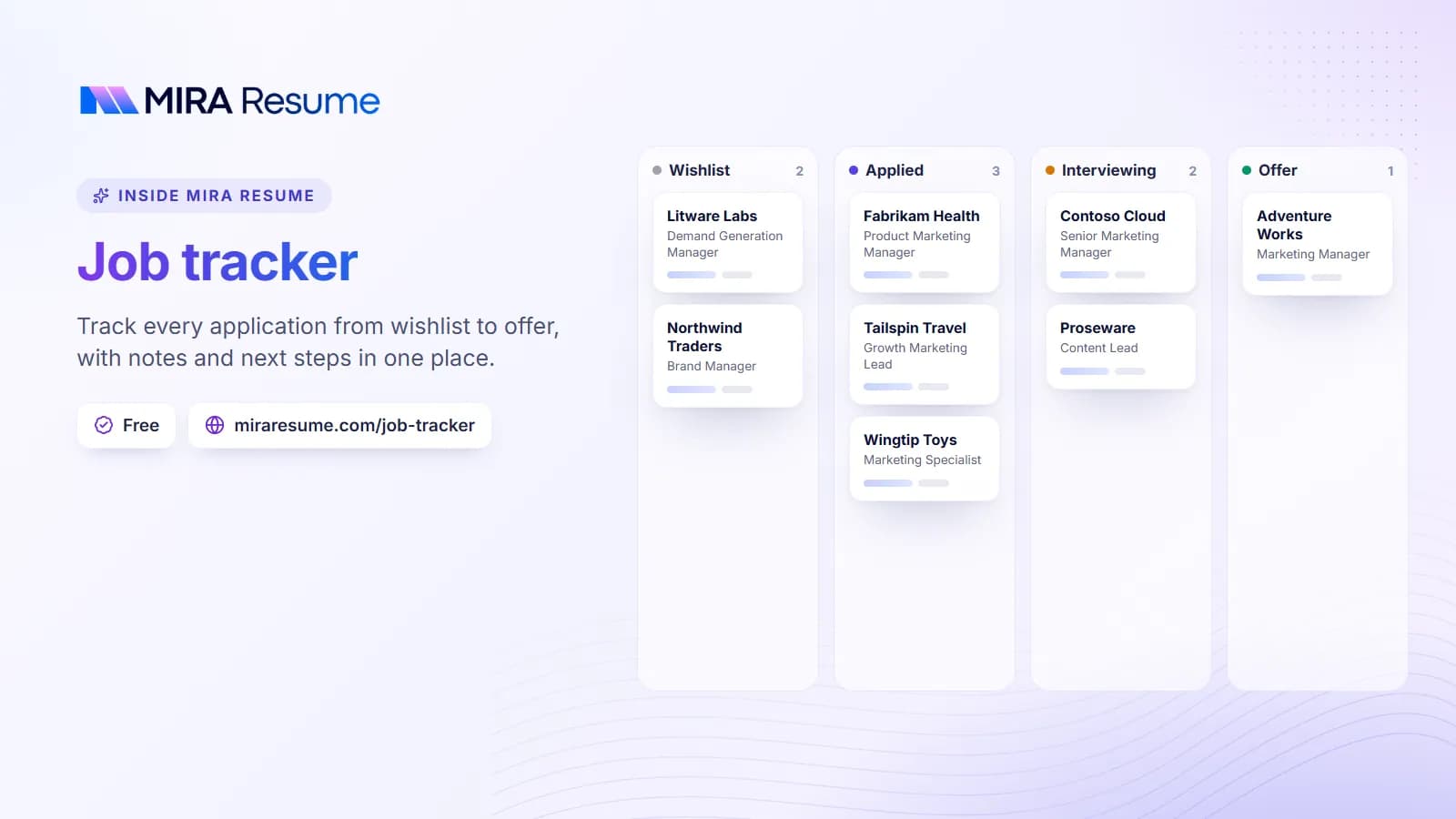
Illustration of the Mira Resume job tracker: Track every application from wishlist to offer, with notes and next steps in one place.
Illustration: Job tracker: Track every application from wishlist to offer, with notes and next steps in one place.Try it

Turn off profile-update notifications before you edit

Hiding Open to Work does little if your network gets a notification every time you polish your profile. LinkedIn has a setting, usually described as sharing profile updates with your network, that controls whether connections are told about changes such as a new job, a new headline or a work anniversary.

Where to find it

  • In your account settings, look under the visibility section for an option about sharing profile updates or profile changes with your network.
  • Some edit screens also show a small toggle about notifying or sharing with your network. Check it every time you edit.

The exact name and location change from time to time, so search the settings page for "profile updates" if you cannot see it.

What it does and does not do

Switching it off stops LinkedIn from broadcasting your edits as updates. It does not hide your profile. Anyone who visits your page will still see the current version. That is why the next section matters: what you change, and how fast, still tells a story.

Make changes gradually

A full rewrite in one evening is noticeable to anyone who checks your profile often. Spread updates over two or three weeks. Start with skills and the About section, then refine your experience, then your headline. Before you start, the free LinkedIn profile audit can show which parts need the most work, so you change less overall.

Other LinkedIn tells that give your job search away

Plenty of people hide the Open to Work frame and then give the game away in other ways. This is the core of how to hide job search on LinkedIn: look the same, behave the same.

A new headline

"Seeking new opportunities" or "Open to roles in product" is a public announcement. Keep the headline about your skills and current work, for example "Data analyst, retail pricing and forecasting, SQL and Power BI".

A sudden burst of activity

If you rarely post and suddenly start writing daily, commenting on every recruiter's post and sharing articles about career change, colleagues notice. Increase activity slowly, if at all.

Liking and commenting on job posts

Reactions and comments can show up in your connections' feeds. A like on a "We're hiring" post is a small but clear signal.

Following many companies at once

Following a long list of competitors and recruiters in one week can be noticed, and a company's Page admins may be able to see who follows it. Follow selectively.

Endorsements and recommendation requests

Asking five people for recommendations in the same week is a well-known sign. Space out requests, and ask former colleagues rather than current ones.

Viewing profiles

When you view someone's profile, they may see that you looked, depending on your profile viewing settings. Check those settings before you browse recruiters' or hiring managers' profiles.

SignalQuieter alternative
"Open to new roles" headlineSkills-based headline about your current work
Full profile rewrite overnightSmall edits over a few weeks, sharing turned off
Liking job postsSave posts or open them on a personal device without reacting
Many recommendation requestsOne or two, from former colleagues
Following dozens of companiesFollow a few, set job alerts instead

Safer alternatives to Open to Work

Open to Work is optional. If you would rather hide Open to Work on LinkedIn completely, or your situation is sensitive, these approaches let recruiters find you or let you find roles without broadcasting anything.

  • Reach out directly. A short, personal message to a recruiter or hiring manager at a company you like is private by nature.
  • Use your past network. Former managers and colleagues who have moved on are often the best route to quiet introductions.
  • Apply on company career pages. Applying directly does not change anything on your LinkedIn profile.
  • Use job boards with privacy settings. Many let you keep your resume private or hide it from named employers.
  • Let matches come to you. Mira Scout finds roles that fit your resume and sends you a digest, so you do not need a public signal.
  • Keep your resume and profile aligned. If you are rebuilding your resume from your profile, the LinkedIn to resume tool keeps the two consistent.

Browsing jobs without a job site on your screen

If your worry is someone glancing at your screen at home or while travelling, Mira Resume's Stealth Mode shows real job listings inside a page that looks like an ordinary spreadsheet. The browser tab shows a neutral file name, and pressing Esc twice switches to a decoy budget sheet. It works without an account.

Be clear about the limit: Stealth Mode changes what is visible on your screen. It does not hide your browsing from your employer's network, proxy or monitoring software. On a work laptop or work Wi-Fi, your employer may still see that you visited the site. Use your own device and network. Our article on whether your employer can see your browsing history explains why.

If your manager sees it anyway

Even with every setting right, someone might notice. If your manager raises it, stay calm and stay honest. You do not have to explain your plans in detail, and you should not deny something that is true.

"I like to keep an eye on the market, and I would rather keep my career plans private. I am fully committed to my work here."

Use that only if it is accurate for you. If your relationship is good, it may be a useful moment to talk about growth, pay or workload. Many managers would rather have that conversation than lose someone without warning.

Looking while employed is common and, in most workplaces, entirely acceptable. If you are unsure, our guide on whether it is okay to look for a job while employed walks through the considerations, and how to look for a job while employed gives a practical weekly plan.

Frequently asked questions

Can my employer see that I am open to work on LinkedIn?

If you choose All LinkedIn members, yes, because the green frame is visible to everyone. If you choose Recruiters only, LinkedIn takes steps to hide your interest from recruiters at your current company, but it says it cannot guarantee complete privacy. Affiliated companies and outside recruiters are the most likely gaps.

What is the difference between Recruiters only and All LinkedIn members?

All LinkedIn members adds a green Open to Work frame to your profile photo, visible to anyone who sees your name. Recruiters only adds no frame and shares your job preferences with recruiters who use LinkedIn's recruiting tools. For anyone who is currently employed and wants privacy, Recruiters only is the safer choice.

Does LinkedIn tell my network when I turn on Open to Work?

With Recruiters only, there is no frame, and the setting is not shown to ordinary visitors of your profile. LinkedIn may suggest sharing a post about it, which you can skip. Separately, turn off the setting for sharing profile updates with your network before editing, so changes to your headline or experience are not broadcast.

How do I remove the green Open to Work frame?

Go to your profile, open the Open to work section and either change visibility to Recruiters only or delete the preferences. The frame should disappear once the change is saved, though it can take a short while to update everywhere. LinkedIn changes its menus from time to time, so look for the closest matching labels.

Is it safer not to use Open to Work at all?

It can be, especially in small industries, senior roles or companies with many affiliated brands, where the Recruiters only filter has more gaps. You can still get noticed by keeping a strong profile, messaging recruiters directly, applying on company career pages and using job-matching tools that do not change anything on your public profile.

Found this useful? Share it

Send it to a friend who is job hunting, or save it for later.

Read this guide with AI

Get a plain-language summary and help applying it to your own resume. Pick an assistant; it opens with this article and a ready prompt.

Back to Stealth Job Search hub

All articles