Coming soon
Stealth Job Search

Job Search Spreadsheet Template: Free Download, Columns and Formulas

Free job search spreadsheet template for Excel and Google Sheets: 14 columns, status values, follow-up formulas and colour rules, plus how to keep it private.

Mira Resume Editorial Team · Career content team Published Updated 10 min read
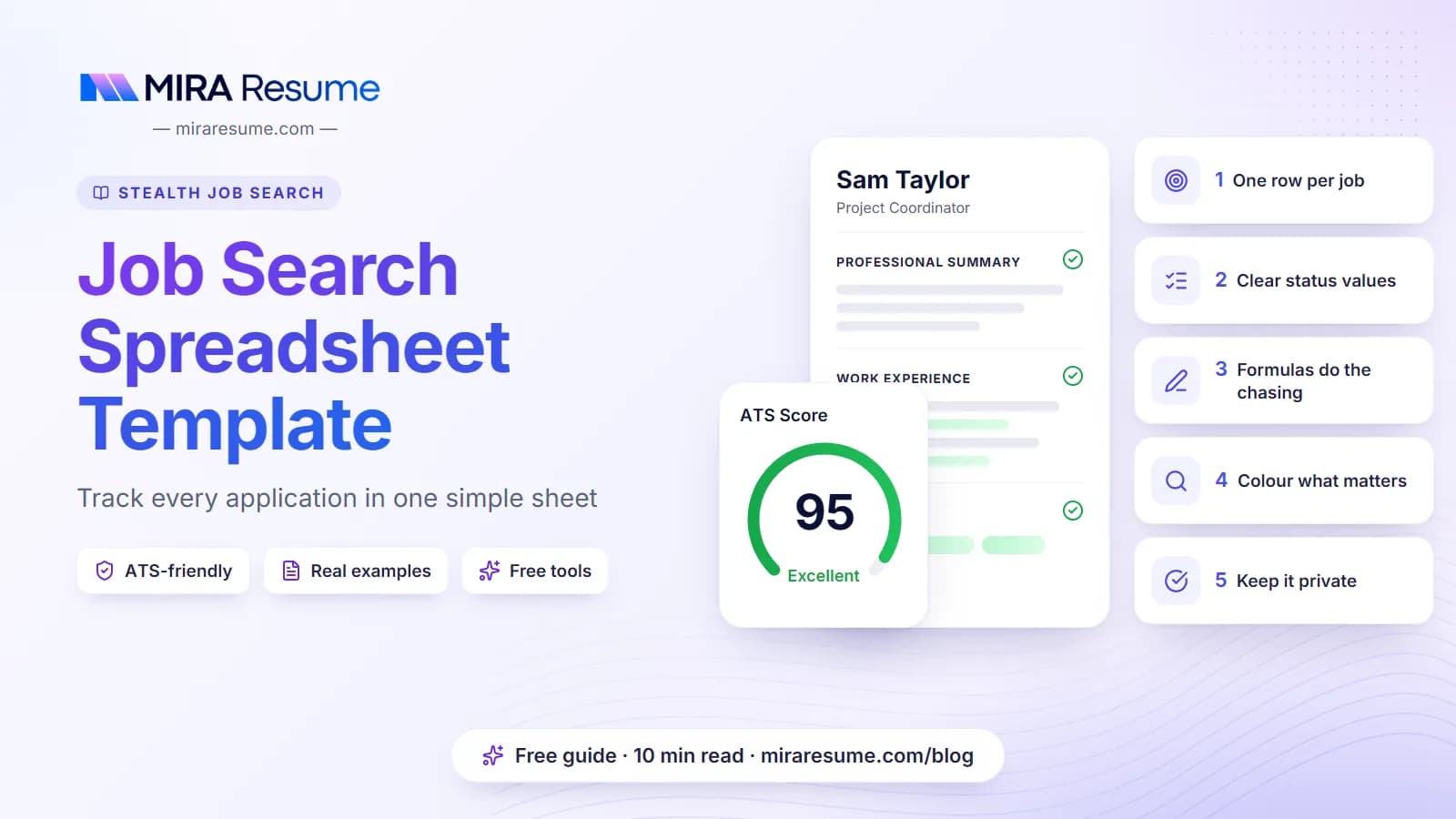
Job Search Spreadsheet Template: cover image for the Mira Resume guide, with an example resume and the 5 main points

A job search spreadsheet template gives every application a row and every detail a column, so you always know where you applied, who you spoke to and what to do next. You can download ours free as a CSV file and open it in Excel, Google Sheets, Apple Numbers or LibreOffice. No sign-up is needed.

This guide explains each of the 14 columns, the status values to use, a few simple formulas, and colour rules that make overdue follow-ups jump out. It also covers how to keep the file private when you are searching while employed, and when a dedicated tracker is the better choice.

It is part of our stealth job search series, for people looking for their next job while they still have one.

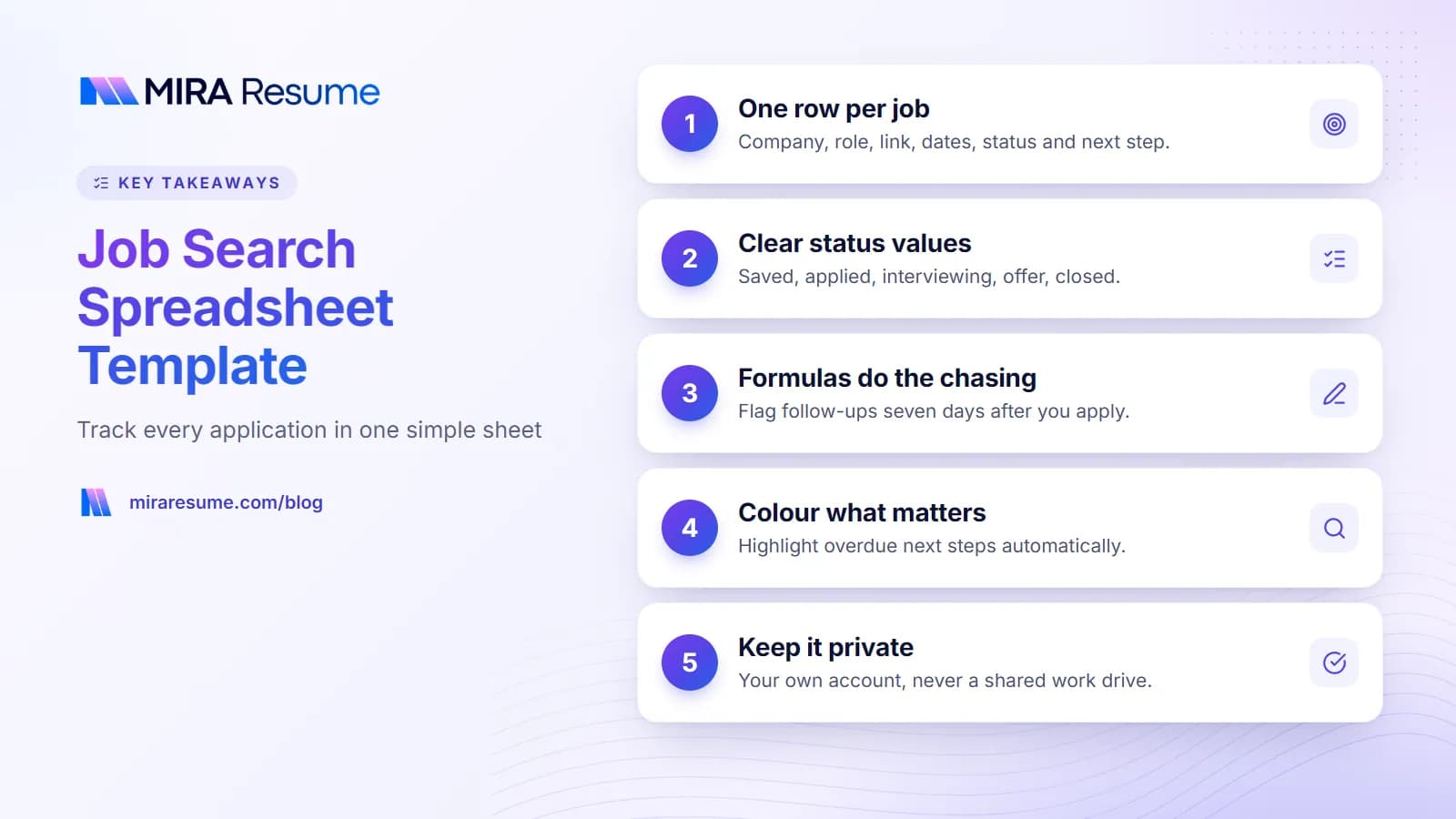
Key takeaways: 1. One row per job; 2. Clear status values; 3. Formulas do the chasing; 4. Colour what matters; 5. Keep it private
Key takeaways from this guide.

Why track your job search in a spreadsheet

After ten applications, the details start to blur. After thirty, you will forget which company you applied to twice, which recruiter promised to call back, and which resume you sent where. A job hunting spreadsheet fixes that in a few minutes a week.

  • You follow up on time. A date column and a simple formula tell you when a polite check-in is due.
  • You avoid duplicate applications. Applying twice to the same role, or through two agencies, looks careless.
  • You see what works. If one resume version gets more replies, you will spot it.
  • You prepare faster. Before an interview, your notes, contact name and the original posting are in one row.
  • You compare offers fairly. Salary, location and work type sit side by side.

A spreadsheet is also private, portable and free. You own the file, you choose the columns, and it works offline.

The columns in the template

A good job application tracker spreadsheet has enough columns to act on, and no more. The template has 14 columns, A to N, in this order. The column letters matter, because the formulas later in this guide refer to them.

ColumnWhat to putExample
A: CompanyThe employer's name. For a confidential role, the agency name plus "client"Example Co
B: RoleThe job title exactly as postedData Analyst
C: LinkThe URL of the original job postinghttps://example.com/jobs/1001
D: LocationCity and country, or "Remote"Bengaluru
E: Work typeOn-site, Hybrid or Remote, plus Contract if it appliesHybrid
F: SalaryThe posted range or your target, with the currencyINR 18-22 lakh
G: Date foundThe day you saved the job2026-11-03
H: Date appliedThe day you sent the application. Leave blank until then2026-11-05
I: StatusOne value from the status list belowApplied
J: ContactRecruiter or hiring manager, and how to reach themJamie Sample, recruiter
K: Next stepThe single next action, written as a taskSend follow-up email
L: Next step dateWhen that action is due2026-11-12
M: Resume versionThe file name of the resume you sentResume_DataAnalyst_v3
N: NotesAnything useful: referral, interview questions, salary talksReferred by a former colleague

Tips for filling it in

  • Write dates as YYYY-MM-DD. Both Excel and Google Sheets usually recognise this format as a date, and it sorts correctly.
  • Keep one row per application. If you apply for two roles at the same company, use two rows.
  • Name resume files clearly. A name like Resume_DataAnalyst_v3 tells you exactly which version went out. If you tailor your resume for each role in the resume builder, note the version here.
  • Paste the link the day you find the job. Postings get taken down, and you will want the description before an interview.

Status values to use

Pick a short, fixed list and spell each value the same way every time. Formulas and filters match exact text, so "Applied" and "applied " (with a trailing space) may count as different values.

  • Saved: you found the job but have not applied yet.
  • Applied: your application is in.
  • Screening: a recruiter or HR call is booked or done.
  • Interviewing: you are in the interview rounds.
  • Offer: you have an offer to consider.
  • Accepted: you said yes. Congratulations.
  • Rejected: the employer said no.
  • Withdrawn: you pulled out.
  • No response: you followed up and heard nothing, so you have moved on.

To stop typos, turn column I into a dropdown list. The steps for Excel and Google Sheets are in the table further down.

Simple formulas for Excel and Google Sheets

You do not need to be a spreadsheet expert. These formulas work the same way in Excel and Google Sheets, and they all use the column letters from the table above.

Count applications by status

Type this in any empty cell outside column I, for example Q2:

=COUNTIF(I:I,"Applied")

It counts every row where the status is Applied. Swap the word to count other stages, such as "Interviewing" or "Offer". Do not put it inside column I itself, or the formula will try to count its own cell.

For a tidy dashboard, add a second tab called Summary, rename your main tab to Tracker, and use =COUNTIF(Tracker!I:I,"Applied") instead. To count every job you have logged, use =COUNTA(Tracker!A:A)-1, which counts filled cells in the Company column and subtracts the header.

Flag jobs that need a follow-up

Add a helper column O with the heading Flag. In cell O2, type:

=IF(AND(I2="Applied",TODAY()-H2>=7),"Follow up","")

Then copy it down the column. It shows "Follow up" when the status is still Applied and seven or more days have passed since the date in column H. Change the 7 to suit your own rhythm. Our guide on how to follow up on a job application has wording for the email itself.

Days since you applied

In a column P, a formula like =IF(H2="","",TODAY()-H2) shows how many days have passed, and stays blank until you add a date applied.

Overdue next steps

=IF(AND(L2<>"",L2<TODAY()),"Overdue","") marks any row where the next step date has passed. After an interview, the follow-up email after interview guide explains how long to wait.

If a formula shows an error

  • Dates stored as text. If a date sits on the left of the cell, the program may be treating it as text. Re-type it, or set the column format to Date.
  • Semicolons instead of commas. In some regional settings, spreadsheet formulas use semicolons between arguments. If a formula is rejected, try replacing the commas with semicolons.
  • Typos in status values. A dropdown list solves this for good.
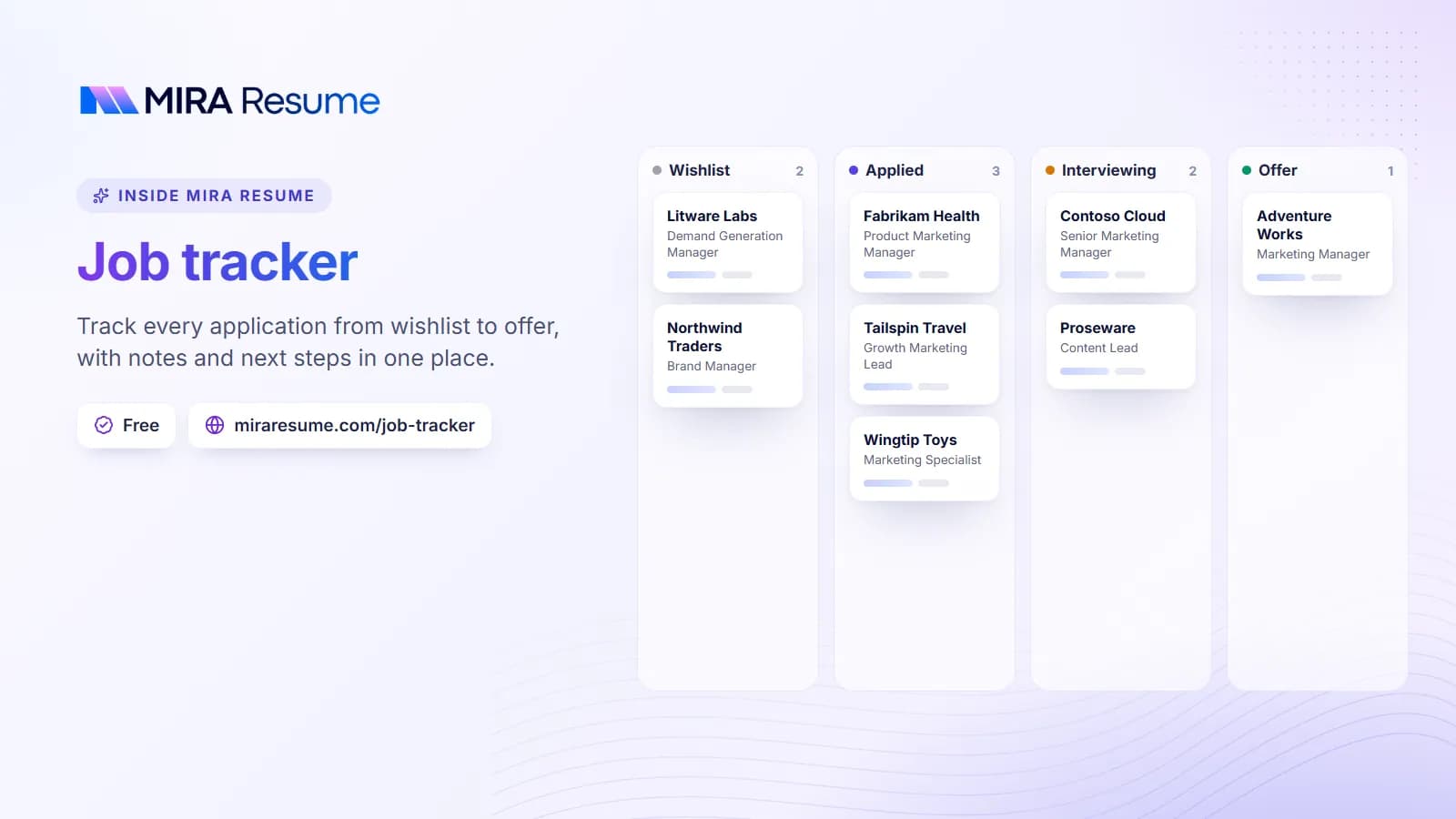
Illustration of the Mira Resume job tracker: Track every application from wishlist to offer, with notes and next steps in one place.
Illustration: Job tracker: Track every application from wishlist to offer, with notes and next steps in one place.Try it

Conditional formatting tips

Colour turns a wall of text into something you can read at a glance. Use conditional formatting with a custom formula so whole rows change colour based on their status.

  • Offers in green. Select A2:N500 and add a rule with the formula =$I2="Offer".
  • Interviews in blue. Same range, formula =$I2="Interviewing".
  • Closed rows in grey. Formula =OR($I2="Rejected",$I2="Withdrawn",$I2="No response"), with grey text so they fade into the background.
  • Overdue next steps in red. Select L2:L500 and use =AND($L2<>"",$L2<TODAY()).
  • Due this week in amber. Same range, =AND($L2>=TODAY(),$L2<=TODAY()+7).
  • Duplicate links. Select C2:C500 and use =AND($C2<>"",COUNTIF($C:$C,$C2)>1) to catch jobs you have logged twice. The first part stops empty rows lighting up.

The dollar sign before the column letter keeps every cell in the row looking at the same column, which is what makes the whole row change colour.

Where to find it: in Google Sheets, go to Format, then Conditional formatting, and choose "Custom formula is". In Excel, go to Home, then Conditional Formatting, then New Rule, and choose "Use a formula to determine which cells to format". Menu names can shift slightly between versions.

How to use the template in Excel or Google Sheets

The template is a CSV file, which almost any spreadsheet program can open. A CSV holds plain values only: no colours, dropdowns or formulas. So once you have set things up, save it in your program's own format.

TaskGoogle SheetsExcel
Open the templateFile, Import, Upload, then create a new spreadsheetDouble-click the file, or use Data, From Text/CSV
Keep your formattingSaves automatically as a Google SheetFile, Save As, Excel Workbook (.xlsx)
Freeze the header rowView, Freeze, 1 rowView, Freeze Panes, Freeze Top Row
Status dropdownSelect column I, then Data, Data validation, DropdownSelect column I, then Data, Data Validation, Allow: List
Filter by statusData, Create a filterData, Filter
Use on your phoneGoogle Sheets appExcel mobile app

Excel job search tracker tips

Turn your data into an Excel table (select the data and press Ctrl+T on Windows). Tables extend formatting and formulas to new rows automatically and add filter buttons to every header. Save as .xlsx, not .csv, or you will lose your setup.

Job search spreadsheet in Google Sheets

Google Sheets saves as you go and is easy to open on your phone, which is handy for logging a recruiter call on the way home. Keep the sharing setting restricted so only you can open it.

Whichever you choose, delete the three example rows once you have read them. They are there only to show how each column is filled in.

Keep your job search tracker private

If you are searching while employed, your tracker holds exactly the information you do not want your employer to see: company names, recruiter contacts and salary figures. Treat it that way.

  • Use your own account. Store it in a personal Google account, a personal Microsoft account, or on your own computer.
  • Never use a work drive. Avoid your company's Google Workspace, OneDrive for Business, SharePoint, shared team drives and network folders. Files in work storage may be visible to administrators.
  • Do not open it on a work laptop. Company devices can be managed and monitored, and synced files can linger. Our guide on whether your employer can see your browsing history explains what is visible.
  • Do not email it to or from work. Even once leaves a copy on the company's mail server.
  • Check sharing. Make sure the file is not shared with anyone by link.
  • Leave out passwords. Never store job site logins in the spreadsheet.

For the rest of the quiet-search basics, read how to hide a job search from your employer and our guide to a confidential job search.

Stealth Mode: a job search that already looks like a spreadsheet

A spreadsheet tracks the jobs you have found. Mira Resume's Stealth Mode helps you find them, inside a page that looks like an ordinary spreadsheet. It shows real job listings with column letters, row numbers, a formula bar and sheet tabs. You search by typing in the formula bar, for example =JOBS("data analyst", "Bengaluru"), or in plain words like "data analyst in Bengaluru".

The browser tab shows a neutral file name instead of a job site, and pressing Esc twice jumps straight to a decoy budget sheet. Jobs come from the same pool as Mira Scout: public company career boards such as Greenhouse, Lever, Ashby, Workable, SmartRecruiters and Recruitee, plus remote-job feeds and Adzuna. Applying opens the employer's original posting.

PlanRows per searchSearches per dayWhat you get
Guest, no account2515Save up to 10 jobs in that browser
Free account5040Saved and applied jobs sync to the Mira Job Tracker
Pro100300Salary and seniority filters, a Match % column scored against your resume (no AI credits used), CSV export, a Mira Scout matches tab, 2 decoy sheets
Elite and Lifetime250No daily cap (fair use)Everything, plus all 4 decoy sheets, a custom file name, and auto-hide that switches to a decoy sheet when you leave the window

Pro members can export results as CSV and copy the columns they need into this template. If you are curious how the Match % works, see our explainer on the job match score.

One honest note. Stealth Mode changes what is visible on your screen. It does not hide your browsing from your employer's network, proxy or monitoring software. Use your own device and your own network.

When a dedicated tracker is better than a spreadsheet

A spreadsheet is ideal when you want full control, custom columns and a file you own. It starts to creak when you are applying to many jobs each week, copying links by hand, or forgetting to update statuses.

Stick with the spreadsheet if

  • You apply to a modest number of carefully chosen roles.
  • You like to customise columns and formulas.
  • You want everything offline, in a file you control.

Consider a dedicated tracker if

  • You save jobs in several places and lose track of them.
  • You would rather not maintain formulas and formatting.
  • You want saved and applied jobs to appear in one place automatically.

Mira Resume includes a Job Tracker in the free plan for every signed-in user. When you sign in to Stealth Mode with a free account, jobs you save or mark as applied sync to it. Pro and Elite members can also use Mira Scout, which finds new jobs every day and scores them against your resume.

Many people use both: the tracker for day-to-day status, and a spreadsheet for notes, salary comparisons and anything custom. Whichever you choose, the habit matters more than the tool. Five minutes after each application keeps your search organised, and if a role you want is asking for skills you have not highlighted, our guide to resume keywords can help you update your resume before the next one.

Frequently asked questions

Is the job search spreadsheet template really free?

Yes. It is a free CSV file with 14 columns and three fictional example rows, and you do not need an account to download it. Open it in Excel, Google Sheets, Apple Numbers or LibreOffice, delete the examples, and save it in your program's own format so your formatting and formulas are kept.

What columns should a job application tracker spreadsheet have?

At minimum: company, role, link to the posting, date applied, status, and next step with a date. Our template adds location, work type, salary, date found, contact, resume version and notes. Fourteen columns is enough to follow up on time and prepare for interviews without making the sheet a chore.

Is Excel or Google Sheets better for tracking a job search?

Both work well, and the formulas in this guide work in either. Google Sheets saves automatically and is easy to update on your phone. Excel works offline and its tables extend formatting to new rows. Choose the one you already use, and keep the file in a personal account.

How does the follow-up formula work?

Put the formula in a helper column, such as O2, and copy it down. It checks whether the status in column I is still Applied and whether seven or more days have passed since the date in column H. If both are true, it shows Follow up. Change the seven to any number of days.

Why did my spreadsheet lose its colours and dropdowns?

You probably saved it as a CSV. A CSV file stores plain values only, so colours, dropdown lists and conditional formatting are dropped. In Excel, use Save As and choose Excel Workbook (.xlsx). In Google Sheets, keep it as a Google Sheet and only download a CSV when you need a backup.

Can my employer see my job search spreadsheet?

They might if it is stored on a work drive, opened on a work laptop, or sent through work email, because company systems can be monitored. Keep the file in a personal Google or Microsoft account or on your own computer, check that it is not shared by link, and open it only on your own devices.

Found this useful? Share it

Send it to a friend who is job hunting, or save it for later.

Read this guide with AI

Get a plain-language summary and help applying it to your own resume. Pick an assistant; it opens with this article and a ready prompt.

Back to Stealth Job Search hub

All articles