
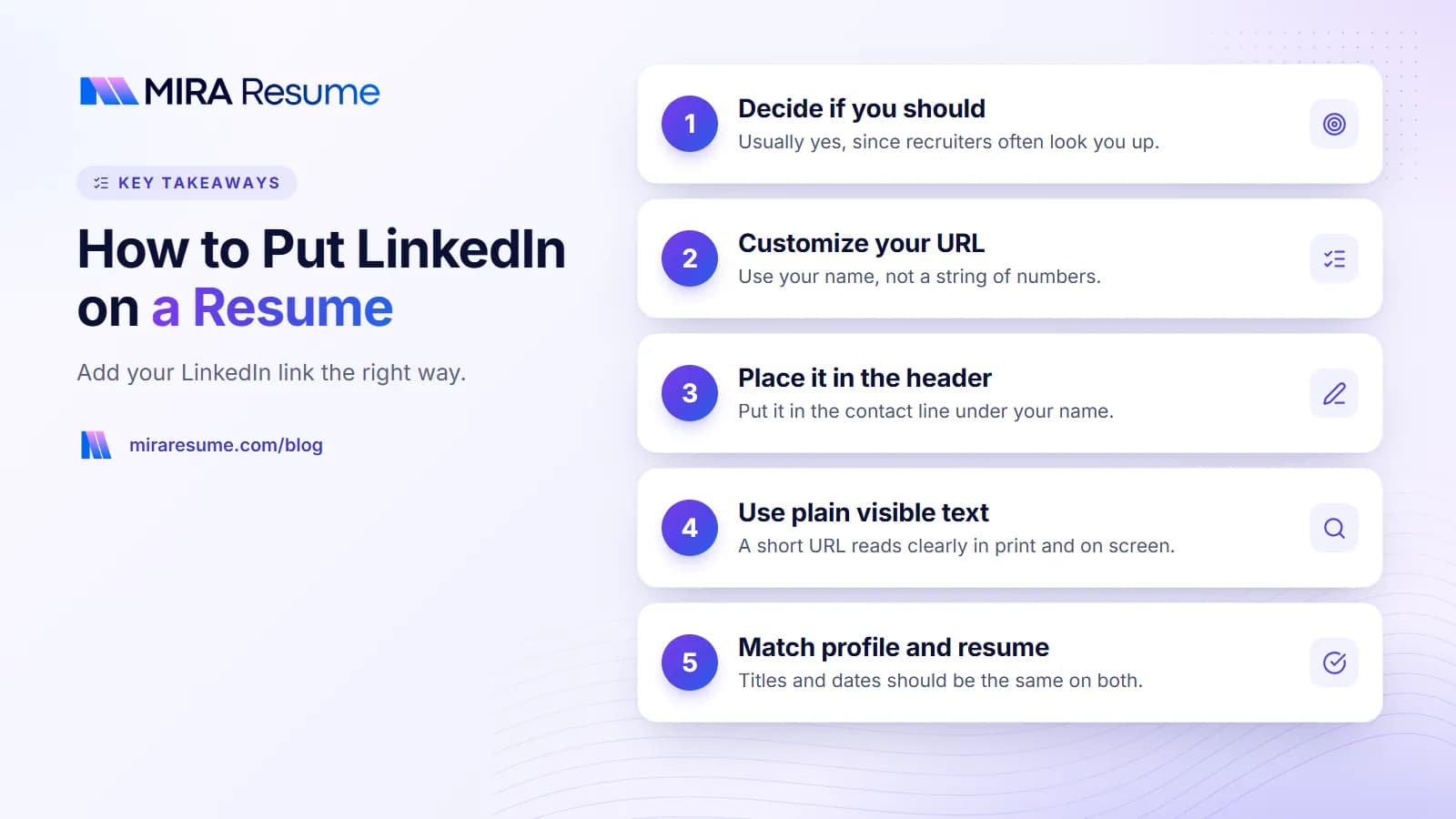
Here is how to put LinkedIn on resume files in three steps: copy your profile link, shorten it into a clean custom URL, and place it in the contact line under your name. That is all the link needs. The harder part is making sure your profile is worth the click.
This guide walks through each step, shows the best places and formats for the link, and explains how to avoid common problems such as broken links in a PDF. You will also learn what your profile should contain before a recruiter sees it, with a side-by-side table to compare it with your resume. No profile guarantees a call back, but a tidy, matching one removes doubt.
Should you put LinkedIn on your resume?
In most cases, yes. Recruiters often look people up, and a link makes that easy. It also shows more detail than a one-page resume can hold, such as recommendations, projects and a longer work history.
There are good reasons to leave it off:
- Your profile is empty, out of date or does not match your resume.
- Your profile has content you would rather not share with employers.
- The employer asks for a specific format and does not mention links.
If any of these apply, fix the profile first, then add the link. A weak profile can do more harm than no link at all.
How to put LinkedIn on resume files, step by step
- Open your LinkedIn profile while logged in.
- Choose "Edit public profile and URL" (the wording can change; look for the option near your profile settings or in the right-hand panel on desktop).
- Edit your custom URL. Replace the default letters and numbers with your name, such as linkedin.com/in/avamartinez. If your name is taken, add a middle initial or your field, such as avamartinez-nurse.
- Save, then open the new link in a private window to see what outsiders see.
- Copy the link and paste it in the contact line of your resume.
- Test it in the final PDF by clicking it and checking it opens your profile.
LinkedIn's menus change from time to time. If you cannot find the option, search the LinkedIn help pages for "custom public profile URL".
Where to put the LinkedIn link on your resume
The best spot is the header, in the same line or block as your other contact details. Readers look there first.
| Placement | Good or not? | Notes |
|---|---|---|
| Contact line under your name | Best choice | Easy to find; reads well in software |
| Own line below the contact line | Good | Useful if the URL makes the line too long |
| Bottom of the page | Weak | Easy to miss |
| Page header or footer area | Avoid | Some systems skip headers and footers |
| Inside an icon or image only | Avoid | The link text may not be read at all |
How the line can look
Denver, CO | 555-0100 | [email protected] | linkedin.com/in/avamartinez
You can drop "https://www." for a shorter look. Keep the text readable, so that a reader can also type it by hand if the resume is printed. For more on header layout, see how to format a resume.
Link formats: plain text, hyperlink or label
There are a few ways to write the link. Choose one and keep it consistent.
| Style | Example | Pros and cons |
|---|---|---|
| Short URL as text | linkedin.com/in/avamartinez | Clear in print and on screen; the best default |
| Label with a link | LinkedIn: linkedin.com/in/avamartinez | Slightly longer but very clear |
| Word "LinkedIn" as a hyperlink | Tidy, but useless if printed; some systems cannot read the hidden link | |
| Long default URL | linkedin.com/in/ava-martinez-8a7b3c12 | Messy and hard to type |
If you choose to hyperlink, show the visible URL as well, so nothing is lost on paper. Tools that read resumes work best with plain, visible text, which you can verify with the ATS checker.
Mira Resume exports PDFs, and you can enter your link in the contact details of the resume builder. After you download, click the link in the PDF to confirm it works.
Make your LinkedIn profile match your resume
A recruiter who clicks your link will compare it with your resume. Differences in job titles or dates can raise questions. Check these items before you share the link.
| Profile part | What to check |
|---|---|
| Headline | Shows your current role or target job, not just "Looking for work" |
| Photo | Clear, friendly, plain background, only you in the shot |
| About section | A few short lines based on your resume summary |
| Experience | Same employers, titles and dates as your resume |
| Skills | Top skills match the ones you list on your resume |
| Education and certifications | Complete and accurate; see how to list certifications |
| Privacy settings | Public profile visible so non-members can open it |
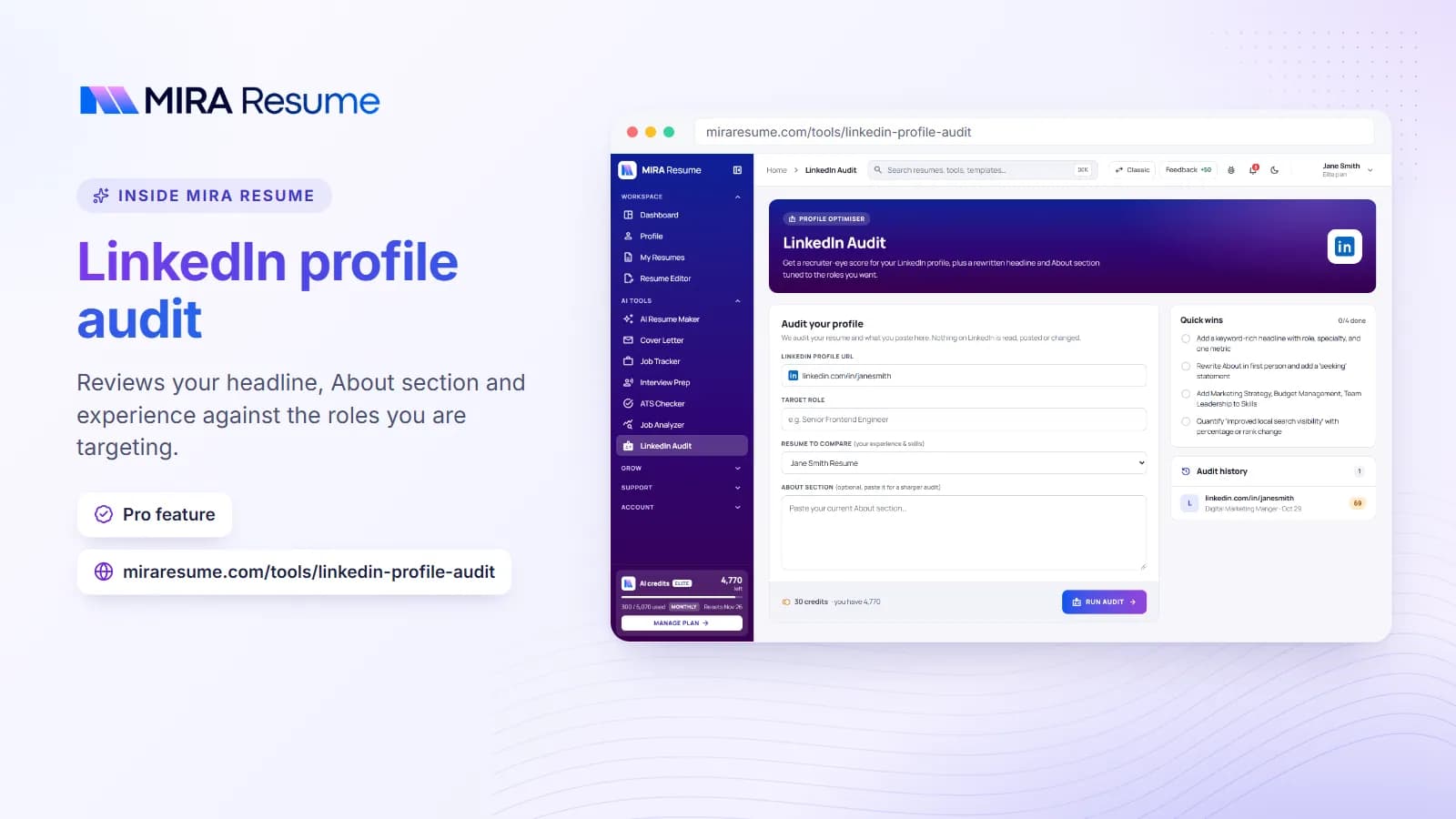
If you are not sure where your profile stands, the LinkedIn audit reviews your profile and points out things to fix. For text for the About section, borrow from your resume summary and rewrite it in a slightly warmer voice.
LinkedIn on a resume for special cases
Students and first-time job seekers
A basic profile with your school, projects, volunteer work and skills is enough. Include it in the contact line. See putting high school on a resume for what else to include.
Career changers
Use your headline and About section to explain where you are heading, not just where you have been. Make sure your resume summary tells the same story.
Applications that ask for a profile link
Many online forms have a LinkedIn field. Paste the same custom URL there.
Jobs that ask for a printed resume
Use a visible, short URL so someone can type it. A hidden hyperlink does nothing on paper.
When you have more than one site
If you also have a portfolio or personal site, list it next to LinkedIn. Limit it to one or two links so the header stays clean.
For jobs that use cover letters, you can mention your profile there too; see how to close a cover letter.
Common mistakes when adding LinkedIn to a resume
- Leaving the default URL. A string of numbers looks careless. Use your name.
- Linking to a private or empty profile. If the page asks the viewer to sign in, many will give up.
- Mismatched details. Different job titles or dates on LinkedIn and the resume cause doubts.
- Using the wrong link. Do not paste a link to a post, a company page or your feed. Use the profile link.
- Breaking the link in the PDF. A line break in the middle of a URL can break it. Test before sending.
- Placing it in the header or footer area. Keep it in the main body.
- Adding other social media by default. Include accounts only if they show professional work.
- Forgetting to proofread the profile. Typos on LinkedIn look just as careless as typos on a resume.
Once your link and profile are ready, review the whole page with our checklist of things to put on a resume and prepare a summary with the AI resume builder.
How to tidy your LinkedIn profile before you share it
A few minutes of cleanup can make a real difference. Work through this list in order.
Headline
The headline sits under your name and shows in search results. Instead of just your job title, add a short phrase about what you do well.
Billing Specialist | Medical Claims and Payment Posting | Epic and Excel
About section
Write three to five short lines. Say who you are, what you do, and what you want next. You can start from your resume summary and add one personal detail so you sound like a person.
I am a billing specialist with five years of experience in medical claims. I enjoy turning confusing statements into clear next steps for patients and providers. I am now looking for a role on a busy revenue cycle team.
Experience
Use the same employers, titles and dates as your resume. LinkedIn gives more room, so you can add a few extra bullets or links to projects, but keep the main facts identical.
Skills and endorsements
Pin your top skills to the top of the list. Pick the ones named in your target job postings. For help finding the right terms, read our guide to resume keywords.
Recommendations
One or two honest recommendations from a manager or coworker add trust. Ask politely, and offer to write one in return. Never buy or invent them.
Activity
If your recent posts or comments are visible, make sure you would be comfortable with an employer reading them.
Should you add a portfolio or other links too?
LinkedIn is the most common link on a resume, but it is not the only one. Whether you add more depends on your field.
| Field | Useful extra link | Tip |
|---|---|---|
| Design and writing | Portfolio site | Link to your three best pieces, not everything |
| Software and data | GitHub or a project page | Pin your best repositories and add short descriptions |
| Education | Teaching portfolio | Include sample lesson plans with names removed |
| Sales and marketing | Case study page | Show real, shareable results only |
| Trades and healthcare | Usually none | LinkedIn and licenses are enough |
Keep the header tidy. Two or three links is plenty. Each should be short, clean and working. If a link would show unfinished or private work, leave it off.
Whatever you add, check that it works from a device you do not normally use, and that it does not ask the viewer to log in. A recruiter on a phone will not try twice.
A short checklist before you hit send
- Your custom URL uses your name and has no stray numbers.
- The link is in the contact line, as plain visible text.
- You opened the link from the final PDF and it loaded your profile.
- Your headline, About section and top skills match the job you want.
- Employers, titles and dates match your resume.
- Your photo is clear and professional.
- Your profile is visible to people who are not logged in.
This takes ten minutes and prevents the most common problems. If you are applying for several jobs at once, check the link again on your phone, since many recruiters open resumes on mobile devices. Also keep in mind that a profile is a living page. When you update your resume, take a moment to update LinkedIn too, so both always tell the same story.