
A Google Doc resume template is a ready-made resume layout that you open in Google Docs and fill in with your own details. It costs nothing, it saves on any device, and you can share it with a friend for feedback in one click. That is why so many job seekers start there.
But a template is only as good as its layout. Some Google Docs templates look great to a person and fall apart when a hiring system reads them. A hiring system, often called an ATS (applicant tracking system), is software that reads your file and sorts it into fields like name, job titles, and dates. This guide explains how to pick a safe template, edit it without breaking it, and export it the right way.
We also show a simple layout you can copy by hand, and we point out where a different kind of tool may serve you better.
What a Google Docs resume template really gives you
Google Docs has a template gallery, and many designers also share their own files online. When you open one, you get a copy that you can change freely. The original stays untouched.
The good parts
- It is free. You only need a Google account.
- It saves by itself. You will not lose work if your laptop dies.
- It is easy to share. You can send a link and let a mentor leave comments.
- It works on a phone. You can fix a typo while waiting for a bus.
The weak parts
- Many templates are built for looks, not for software that reads them.
- You do the layout work yourself. If you add a line, the page may shift and push text onto a second page.
- There is no check that tells you if a hiring system can read your file.
- Free templates are used by thousands of people, so yours may look like everyone else's.
None of this means you should skip Google Docs. It means you should choose with care. The next section shows you how.
How to choose a Google Docs resume template that is ATS friendly
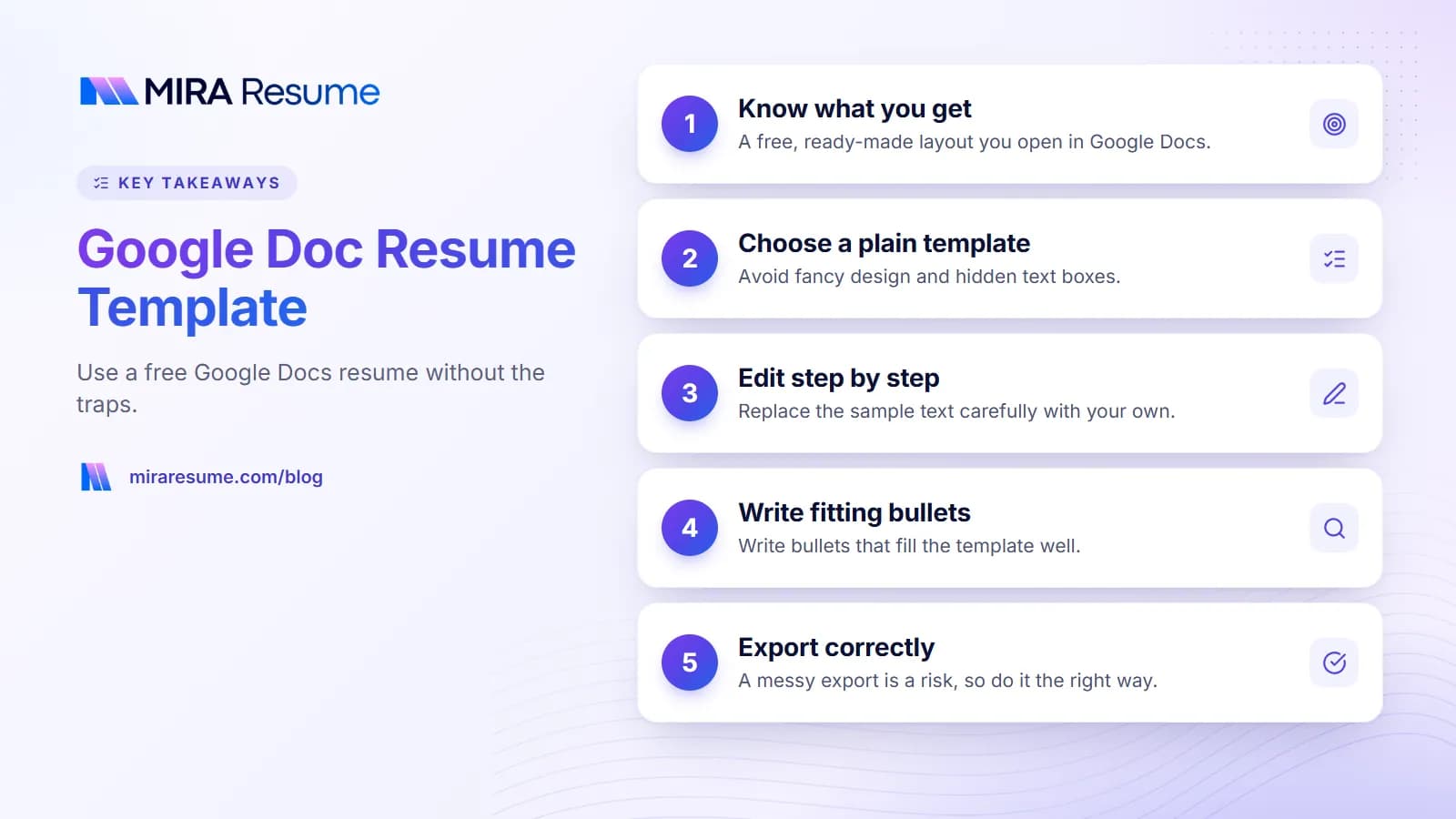
If you want a Google docs resume template ATS friendly enough to pass a hiring system, look for plainness. The best template often looks a little boring. That is fine. A person can still tell you are skilled from your words, not your colors.
Use this table when you compare options. Left column: what to look for. Right column: what to avoid.
| Safe choice | Risky choice |
|---|---|
| One column of text from top to bottom | Two or three columns with a sidebar |
| Normal headings such as Experience and Education | Clever headings such as My Journey |
| Contact details in the main page body | Contact details inside the page header or footer |
| Plain bullet points | Icons, arrows or emoji as bullets |
| Standard fonts like Arial, Calibri or Georgia | Decorative or script fonts |
| Skills written as a plain list or a sentence | Skill bars, star ratings or pie charts |
| Text only, one color for words | Photos, logos, and text over colored shapes |
Here is a simple test. Click into the template and press Ctrl+A (or Cmd+A on a Mac) to select everything. If parts of your text sit in boxes that do not highlight with the rest, they are probably text boxes or drawings. Software often skips those.
Check the page count and margins
Most early and mid-career people need one page. If you are not sure, read our guide on how many pages a resume should be. Keep margins at about 0.7 to 1 inch so nothing is cut off when printed.
Check the fonts
Pick a font size of 10 to 12 points for body text. Headings can be a little larger. If a template uses a font you do not recognize, switch it to a common one before you start typing.
Step by step: edit your Google Doc resume template
Follow these steps in order. They keep the layout from breaking.
- Make your own copy. Open the template and choose File, then Make a copy. Name it with your name and the year, such as Maria-Lopez-Resume-2026.
- Delete sample text first. Replace all placeholder text before you adjust spacing. This avoids half-edited lines.
- Write your top section. Put your name, city, phone, email, and a LinkedIn link at the top, in the page body.
- Add a short summary. Two or three lines about what you do and what you are good at. Our resume summary examples can help.
- Fill in work history. Put the newest job first. List job title, company, city, and dates. Then add 3 to 5 bullets per job.
- Add education and skills. Keep them short.
- Tailor it. For each job, change a few words so your resume matches what the posting asks for.
- Proofread out loud. Read each line to catch typos that spell check misses.
A safe layout you can copy
If your template is too fancy, you can build this layout in a blank doc in ten minutes.
| Order | Section | What goes in it |
|---|---|---|
| 1 | Name and contact | Name, city, phone, email, LinkedIn |
| 2 | Summary | 2 to 3 lines about your focus and strengths |
| 3 | Experience | Title, company, dates, 3 to 5 bullets |
| 4 | Education | Degree, school, year |
| 5 | Skills | A plain list of tools and abilities |
| 6 | Extras (optional) | Certifications, languages, volunteer work |
For a deeper look at this simple structure, see our page on the simple resume format.
Write bullets that fill the template well
A template only holds your words. Strong bullets are what get you a call. Each bullet should say what you did and, if you can, what changed because of it.
Here is a weak bullet and a stronger one:
Weak: Responsible for helping customers.
Stronger: Answered about 40 customer calls a day and solved most issues on the first call.
Only use numbers that are true. If you do not know the exact figure, use an honest estimate and say "about." Never invent a number to look better.
Start with a clear action word
Words like led, built, trained, and reduced are direct. We list many in our guide to action verbs for a resume.
Match the job post
Read the posting and note the skills it repeats. If you truly have them, use the same wording in your bullets and your skills list. If you do not have a skill, do not add it. Our guide on skills to put on a resume shows how to choose.
How to export your Google Doc resume the right way
Once the content is ready, you need a file to send. Google Docs lets you download as PDF through File, Download, PDF Document. A PDF keeps your layout the same on every screen.
| File type | Good for | Watch out for |
|---|---|---|
| Most online applications and email | Make sure text can be selected, not just viewed as a picture | |
| Word (.docx) | When a job post asks for Word | Layout may shift when opened in another program |
| Plain text | Forms that ask you to paste your resume | All styling is lost |
After exporting, open the file and try to select a line of text with your mouse. If you can select it, the text is real text, which is what hiring systems need. Then scroll through to confirm that no section spilled onto a surprise second page.
Always follow the file type the employer asks for. If the post says "upload a PDF," use a PDF. If it says "Word only," export a Word file.
Name the file clearly, such as Maria-Lopez-Resume.pdf. Avoid names like resume-final-v7-REAL.pdf.
Common mistakes with Google Docs resume templates
- Keeping sample text. It is easy to leave a placeholder like "Your Name Here" in a footer. Read the whole file, including headers.
- Squeezing in more by shrinking the font. Under 10 points is hard to read. Cut older or weaker points instead.
- Using tables for layout. Some templates use hidden tables to place text side by side. Software may read them in a strange order.
- Putting contact details in the header. Some systems skip the header area. Keep them in the body.
- Using a photo. In many countries, including the US, a photo is not expected and can cause problems for the reader and the software.
- Sending the same resume to every job. Small changes for each job make a real difference.
- Linking to a Google Doc instead of attaching a file. Sharing settings can block the recruiter. Send a PDF.
Another common error is picking a template because it looks nice on a preview image. Open the actual file and test it with Ctrl+A first.
When a Google Doc is not the best tool
Google Docs is a word processor, not a resume tool. It does not know what an ATS looks for. If you keep fixing spacing, or you are applying to many jobs and want a quick tailored version each time, you may spend more time on layout than on content.
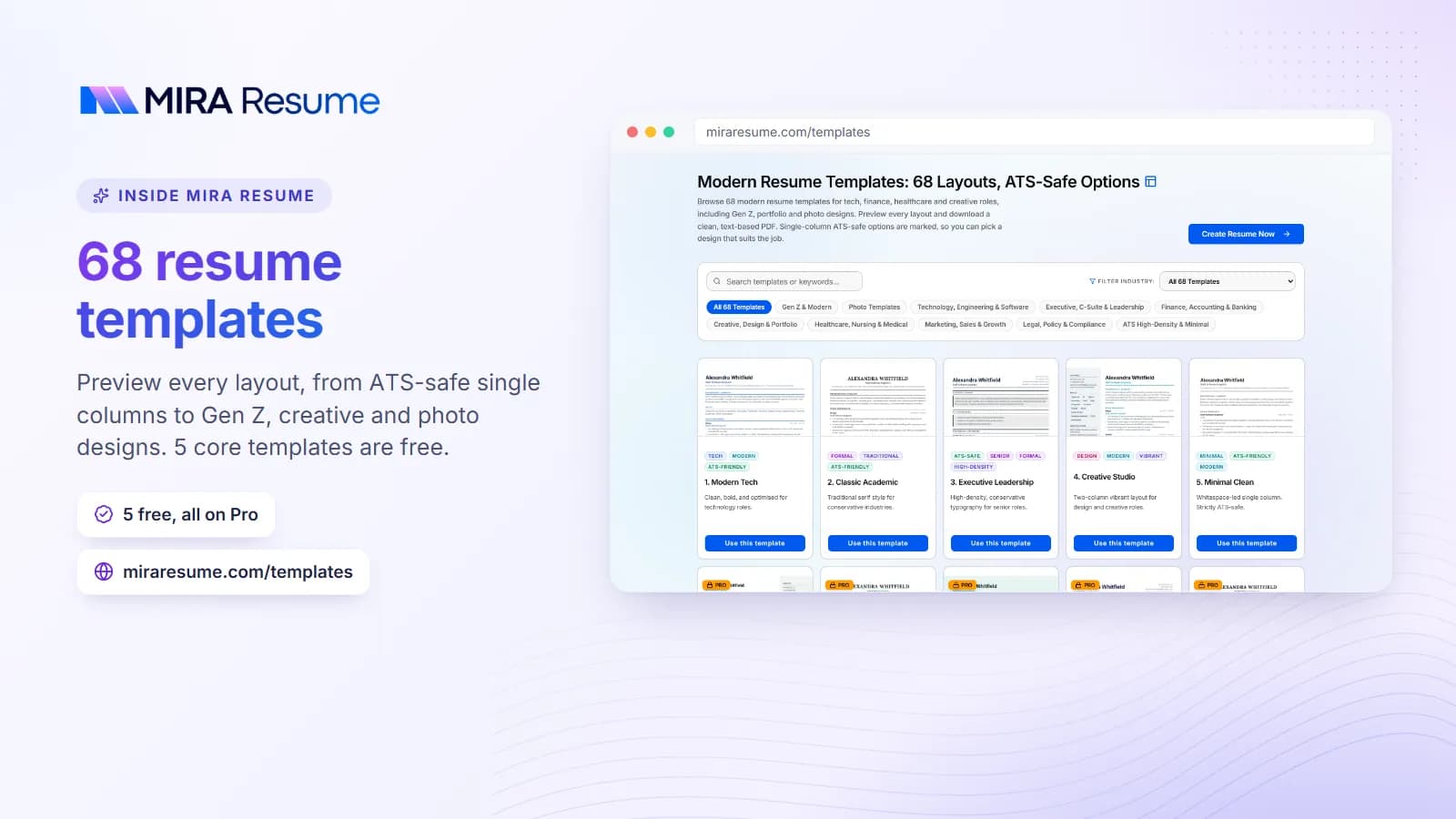
Mira Resume offers ATS-friendly templates that you fill in with a form and download as a PDF. The layout is handled for you, so adding a bullet does not push your education off the page. Mira Resume's editor can also download an editable Word (.docx) file. There is no direct Google Docs export, but you can upload the .docx to Google Drive and open it in Docs. The Word file is a plain single-column version, so if you want a styled Docs template, build in Docs from the start instead.
You can browse the options on our resume templates and templates gallery pages. If you want to check a finished file from any source, try the ATS checker. It is a quick way to see how a system might read your document, though no tool can promise a result with every employer.
Which route fits you?
| Your situation | Better fit |
|---|---|
| You want full control and like to tweak things | Google Docs template |
| You need to collaborate live with a coach | Google Docs template |
| You want a layout that is handled for you | A resume builder with PDF download |
| You need a Word file | A Word template, see Microsoft Word resume templates |
You can also pair the two. Draft your text in Google Docs where it is easy to edit, then move it into a template. If you like to start from a free layout, read about free resume templates to download as well.
A quick checklist before you hit send
- One column, normal headings, no text boxes.
- Contact details are in the body, not the header.
- Fonts are common and at least 10 points.
- Every placeholder is gone, including in the header and footer.
- Dates and job titles line up and are written the same way each time.
- Your skills match the job post, and are true.
- You exported a PDF (or Word if asked) and tested that text can be selected.
- The file name has your name in it.
If you want to write a cover letter too, our Google Docs cover letter template guide follows the same ideas.