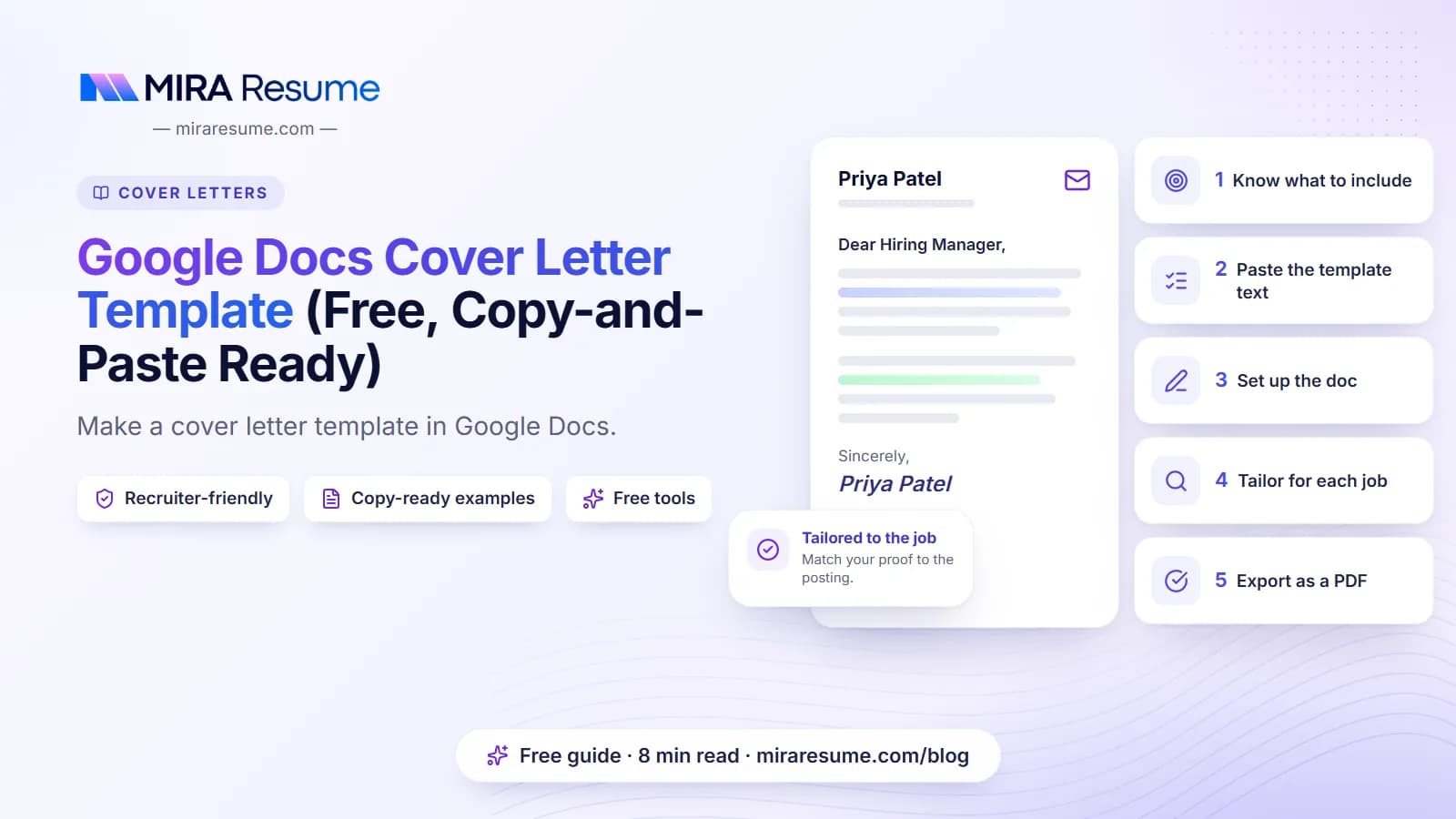

The best Google Docs cover letter template is a plain, one-page document with simple fonts, normal margins and four parts: a header, a greeting, a short body and a closing. You do not need a fancy design. You need something easy to read and easy to edit for each job.
Google Docs is free, saves your work as you type, and exports to PDF in two clicks. That makes it a smart choice if you apply to many jobs. Below you will find a copy-ready template, a step-by-step setup, font and spacing settings, and the mistakes that make a cover letter look messy.
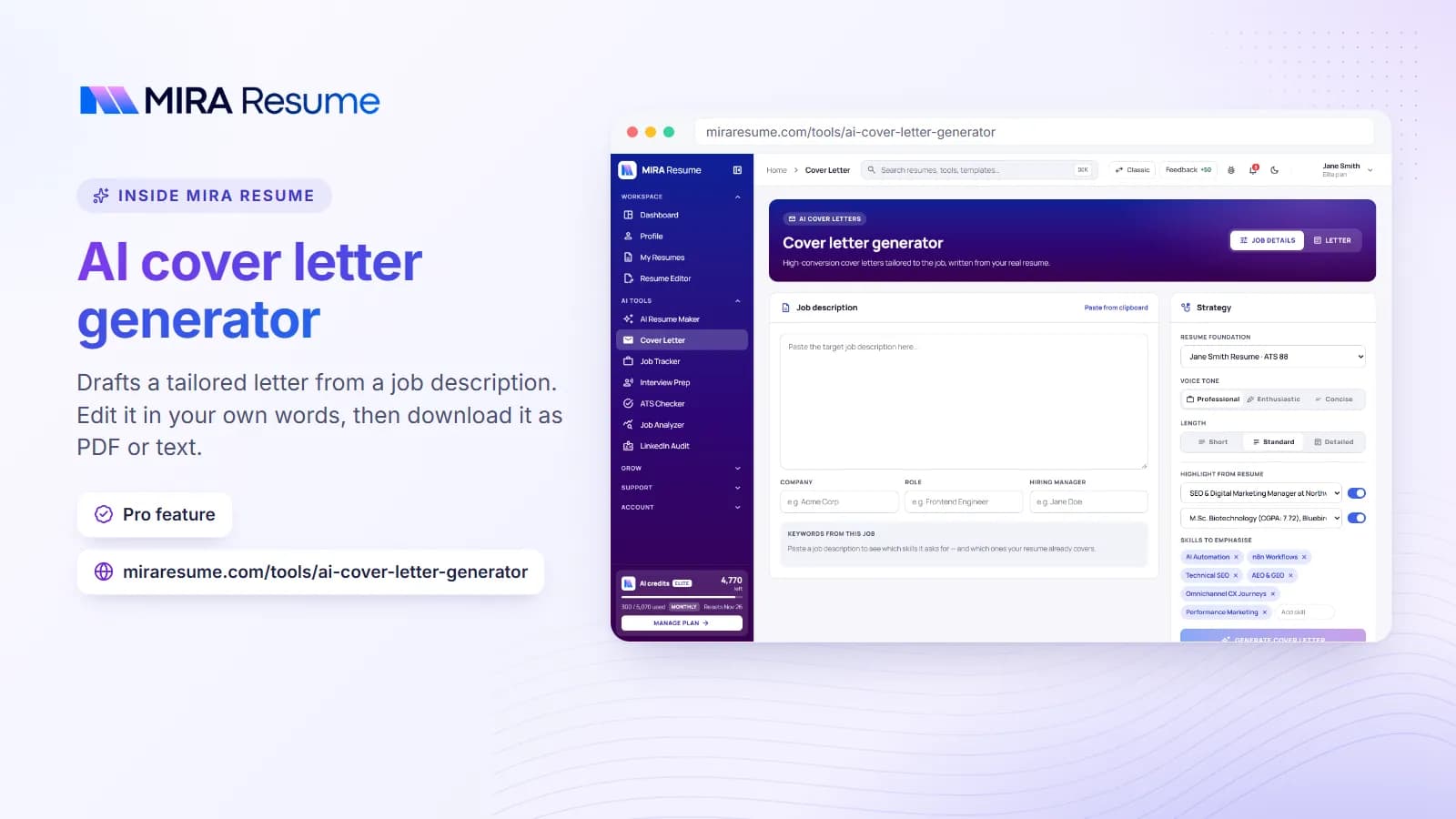
If you only want the finished letter, you can also write one with our cover letter tool. If you want to build it yourself in a blank document, read on.
What a Google Docs cover letter template should include
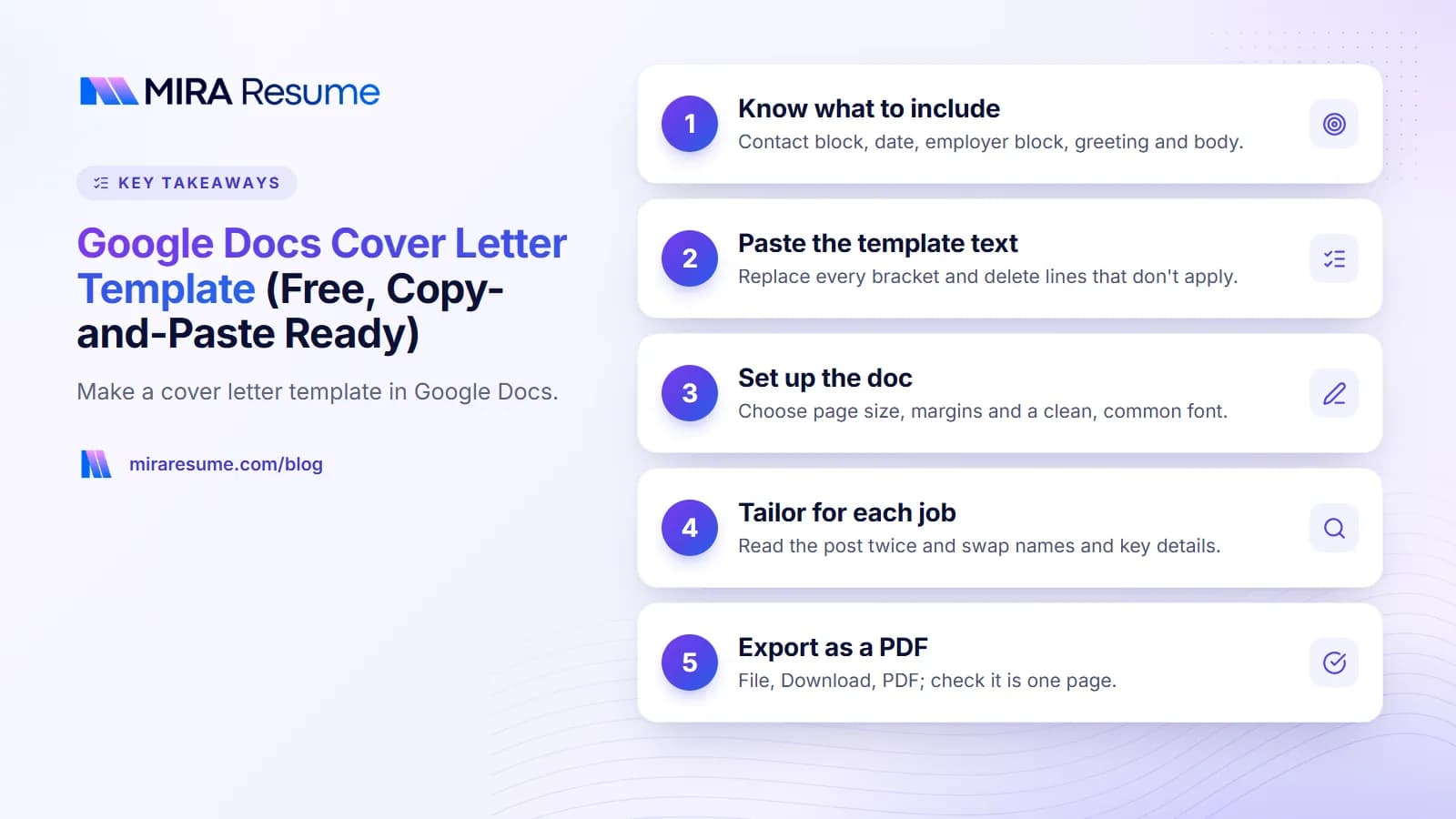
A template is only a starting shape. You will change the words every time. What stays the same is the structure. Here is what a good one holds.
- Your contact block. Name, city, phone, email and, if you like, a LinkedIn link.
- The date. Write the day you send it.
- The employer block. The hiring manager's name, job title, company and address if you know them.
- A greeting. "Dear Ms. Rivera," works well. If you have no name, see our guide on how to start a cover letter.
- Three short body paragraphs. Why you are writing, what you can do for them, and why this company.
- A closing and signature. Thank the reader and invite a reply.
That is all. If a template adds photo boxes, side bars or icons, think twice. Applicant tracking systems (ATS) are programs that read your file and sort applicants. They sometimes scramble text that sits inside boxes or columns. Plain layouts are safer.
Copy-and-paste Google Docs cover letter template text
Open a blank Google Doc and paste the text below. Replace every item in square brackets. Delete any line that does not apply to you.
[Your Full Name]
[City, State] | [Phone] | [Email] | [LinkedIn or portfolio link]
[Date]
[Hiring Manager Name]
[Job Title]
[Company Name]
[Company City, State]
Dear [Mr./Ms. Last Name],
I am writing to apply for the [Job Title] role at [Company]. I have [number] years of experience in [field or skill], and I was glad to see that your team is looking for someone who can [main duty from the job post].
In my last role at [Employer], I [specific result, for example: cut order errors by changing the way we checked shipments]. I also [second proof point, such as a tool you use, a skill you built or a goal you reached]. These are the same skills your post asks for, such as [skill 1] and [skill 2].
I am drawn to [Company] because [one real reason: a product, a value, a project you read about]. I would like to bring my [strength] to your team and help with [goal of the role].
Thank you for your time. I would welcome the chance to talk about how I can help. You can reach me at [phone] or [email].
Sincerely,
[Your Full Name]
Notice how short each paragraph is. A reader should be able to scan it in under a minute. For more on how much to write, read how long a cover letter should be.
How to set up the template in Google Docs, step by step
Follow these steps once. Then save the file as your master copy and make a new copy for each job.
- Open a new document. Go to Google Docs and choose a blank document. Name it something clear, such as "Cover Letter Master".
- Set the page. Go to File, then Page setup. Choose Letter size for the US and Canada, or A4 for most other countries. Set margins between 0.75 and 1 inch.
- Pick the font. Select all text and choose a simple font, such as Arial, Calibri, Georgia or Times New Roman, at 10.5 to 12 points.
- Set the spacing. Use Format, then Line and paragraph spacing, then Single or 1.15. Add a space after each paragraph instead of pressing Enter twice.
- Paste the template text. Use Ctrl+Shift+V (Cmd+Shift+V on Mac) to paste without carrying over strange formatting.
- Make your name stand out. Bold it and make it a little larger, around 14 to 16 points. Keep everything else plain.
- Check the length. The letter should fit on one page. If it spills over, cut words rather than shrinking the font.
- Save your master. Then use File, then Make a copy, for each application.
Where to find ready-made layouts inside Google Docs
Google Docs has a template gallery. Open it from the Docs home page, or choose File, then New, then From template gallery. Look in the Resumes and Letters sections. Gallery layouts change over time, so check what is there today. If you use one, strip out anything decorative and make sure it matches the plain structure above.
Use real text, not text boxes
Type directly on the page. Avoid text boxes, drawings and tables for the main letter. A letter in a text box can look right on your screen but read in the wrong order for software.
Best fonts, sizes and spacing for a cover letter
Good formatting is mostly about leaving things out. Here is a quick cheat sheet you can follow without thinking.
| Setting | Good choice | Why it works |
|---|---|---|
| Font | Arial, Calibri, Georgia, Times New Roman | Common fonts show up the same on every computer. |
| Body size | 10.5 to 12 pt | Easy to read without crowding the page. |
| Margins | 0.75 to 1 inch | Looks tidy and leaves room to breathe. |
| Line spacing | 1.0 to 1.15 | Keeps the letter on one page and still readable. |
| Alignment | Left-aligned | Even left edges are easier on the eye than justified text. |
| Colour | Black or dark grey text | Prints well and looks professional. |
| Length | 250 to 400 words | Short enough to be read all the way. |
The word range above is a common guideline, not a rule. Hiring managers differ, so if an employer gives its own instructions, follow those first.
Match your cover letter to your resume. Use the same font and the same header style so the two look like a set. Our resume templates are built that way if you want a quick match.
Make your template work for each job (a 10-minute routine)
The best letters feel written for one job, because they are. Use this short routine every time you copy your master file.
- Read the job post twice. Underline the three skills or duties that appear most. Our job analyzer can pull those out for you.
- Swap the names. Update the company, the job title and the hiring manager. Search the file for the old company name to be sure none is left.
- Change paragraph two. Choose the one or two stories from your past that best match this job. Use numbers when you honestly have them.
- Rewrite one sentence about the company. Mention something real, such as a product, a mission line or a recent project.
- Read it aloud. If you stumble over a sentence, shorten it.
- Export a PDF. Name it clearly (see next section).
Before and after: a weak line versus a strong line
| Weak | Stronger |
|---|---|
| I am a hard worker who loves teamwork. | I trained four new teammates and helped our team finish the month-end close two days early. |
| I would be a great fit for your company. | Your post asks for scheduling experience. I built the weekly rota for a team of 18. |
| I am passionate about customer service. | I handled about 40 customer chats a day and kept my replies friendly and short. |
Only use numbers you can back up. If you do not have exact figures, describe the result in plain words instead. For more on what belongs in the letter, see our cover letter examples.
How to save your Google Docs cover letter as a PDF
Send a PDF unless the employer asks for another type. A PDF keeps your layout the same on every device. Here is how to export one.
- Click File, then Download, then PDF document (.pdf).
- Open the downloaded file and check that it is one page and nothing moved.
- Select the text with your cursor. If you can highlight words, the file holds real text, which is what ATS software needs.
- Rename it. A good name is FirstName-LastName-Cover-Letter-Company.pdf.
Some job sites ask for a Word file. In Google Docs choose File, then Download, then Microsoft Word (.docx). If you want help with that format, see our guide to Microsoft Word templates.
Check it with an ATS tool before you apply
If you are not sure the file reads cleanly, run it through an ATS checker. It shows how software reads your document and points out missing keywords. It cannot promise an interview, but it can catch layout problems early.
Common mistakes with Google Docs cover letters
- Leaving the old company name in. This is the most common slip. Search the document before you send it.
- Using a design-heavy gallery layout. Colour bars, icons and columns look nice but can confuse software.
- Sending a link instead of a file. A sharing link can fail if permissions are wrong. Attach a PDF.
- Running to two pages. Trim until it fits on one.
- Copying your resume line by line. The letter should add the story behind the facts. See cover letter vs resume for the difference.
- Skipping the proofread. Turn on Tools, then Spelling and grammar check, then read it once more yourself.
- Weak closing. Ending with "I hope to hear from you" is fine, but a clear next step is better. Our guide on how to close a cover letter has examples.
When a Google Docs template is enough, and when to use a tool
A manual template is a great choice when you apply to a few jobs and like control over every word. It costs nothing and you can reuse it forever.
If you apply to many roles, a tool can save time. Our cover letter builder turns your resume and a job post into a first draft that you then edit. You still check every line, because the letter must sound like you and be true. See pricing for what is free and what is paid.
Either way, the steps are the same. Keep it short, match it to the job, and check the details twice. If you want to pair your letter with a strong resume, start with the AI resume builder.